Controls
Minecraft offers controls tailored for different input methods. While Java Edition is playable only with a keyboard and mouse, Bedrock Edition has a wider variety of control schemes in order to accommodate players across all platforms. These controls can be changed in the options menu.
Java Edition
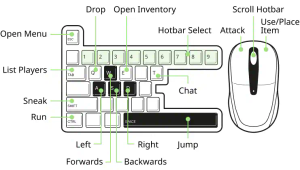
Visual map

Non-configurable controls

Java Edition uses a combination of the mouse and keyboard for controls, generically known as "mouselook/keymove." Many prior games (such as DOOM and Quake) have used such a scheme, but those who have not played such a game before may need practice to get around effectively. Creative mode or Peaceful difficulty in Survival mode are helpful for a player to gain familiarity with the controls.
| Action | Function |
|---|---|
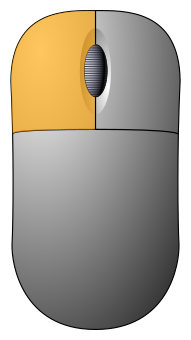
|
Pick an item up from a slot; split a stack evenly (hold and drag); sort loose items into one stack (double click). |
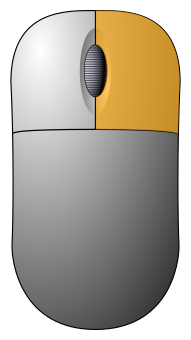
|
Pick an item on a slot in half; Place one item from a stack in each inventory slot (hold and drag). |
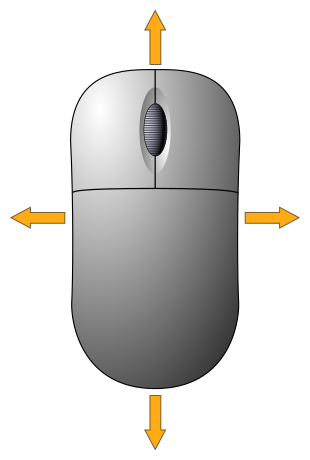
|
Turning; aiming; camera movement. |
|
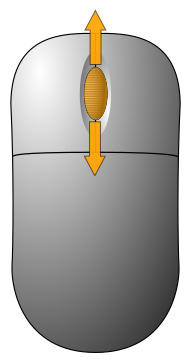
Selects an item on the hotbar. Note that horizontal scrolling does nothing.
Scrolls through any menu screens when opened, including Video Settings, Select World screen, chat overlay, server list, etc. Changes the flight speed in Spectator mode. Scrolling up increases the flight speed, while scrolling down decreases the flight speed. |
|
Esc |
Opens up the pause menu and gives back cursor control. Pauses singleplayer games. Closes any open GUI, including but not limited to: chat window, inventory, crafting table, furnace, command block, dialog, and more. |
| Ctrl + B | Toggles the Narrator. |
| F1 | Toggles the Heads-Up Display.
Use this in conjunction with F2 to take screenshots without the HUD. This option is also useful when exploring with a map. |
| F3 | Debug screen
Main article: Debug screen
Pressing this key toggles the appearance of extra debug information on the top of the screen alongside the game's version, such as FPS (frames per second), coordinates, and available memory. Pressing the keys 1–9 while in the debug screen shows a more detailed view of the graph on the right. Pressing 0 shows a less detailed graph. (Hold ⇧ Shift before pressing F3 to display the Profiler graph.) Debug hotkey Main article: Debug hotkey
Pressing Q while holding F3 brings up a help menu, showing all F3 shortcuts. Pressing A while holding F3 reloads all chunks. Pressing T while holding F3 reloads all textures, sounds and web-loaded client resources, which is useful for resource pack authors. Pressing T while holding F3 and the left or right mouse buttons causes input from said buttons to be pressed repeatedly, which is useful for operating automatic farms while on different tasks. Pressing P while holding F3 toggles the auto-pause when the window loses focus. Pressing H while holding F3 toggles detailed item descriptions.
Pressing C while holding F3 copies current location data with the format Pressing C while holding F3 for at least 6 seconds triggers a manual debug crash on purpose after the keys are released. Pressing C while holding F3 and Ctrl for at least 6 seconds triggers a Java runtime crash on purpose after the keys are released. Pressing B while holding F3 toggles showing the hitbox around entities. Pressing D while holding F3 clears chat history (including previously typed commands). Pressing N while holding F3 switches the player's game mode between the previous game mode and Spectator. Pressing G while holding F3 shows the chunk boundaries immediately surrounding the player. Pressing Esc while holding F3 pauses the game without bringing up the pause menu. Pressing F4 while holding F3 brings up the gamemode changer menu. Pressing L while holding F3 begins a ten-second recording, which captures information such as tick durations and used heap sizes. Pressing S while holding F3 dumps contents of dynamic textures and font textures to screenshots/debug/. Pressing V while holding F3 prints client-side version information. |
| F4 |
Toggles the currently active post-processing shader, such as screen filters when spectating as certain mobs. |
| F5 |
When the F5 key is pressed while on the multiplayer screen, it refreshes the server list. |
| ⇧ Shift | When the inventory is open, ⇧ Shift + clicking on an item or stack moves it between the inventory and the hotbar.
⇧ Shift + clicking on a piece of armor, a carved pumpkin, a mob head or a pair of elytra moves it between the inventory and the corresponding armor slot. ⇧ Shift + clicking on a shield moves it between the inventory and the off-hand slot. When a container is open, ⇧ Shift + clicking on an item moves up to a stack between the container and the inventory. Existing stacks are filled first, then empty slots from top to bottom then from left to right. ⇧ Shift + double clicking moves all items of the same kind. To ⇧ Shift + double click, get one item in hand, and while holding ⇧ Shift, double click on another item type to move it. When a crafting table is open, ⇧ Shift + clicking an item or stack in the inventory moves it into the 3×3 crafting grid. The slots are filled from left to right and then top to bottom. When any type of furnace is open, ⇧ Shift + clicking an item or stack in the inventory moves it into the input (upper left) slot of the furnace. Items that can serve as fuel move to the fuel (lower left) slot. When crafting, ⇧ Shift + clicking the crafting output automatically crafts the maximum number of that item for the materials being used (up to one stack), and moves all crafted items to the inventory. In the Survival inventory tab of the Creative inventory, ⇧ Shift + clicking the X clears the whole inventory. In any other tab, ⇧ Shift + clicking an item puts a stack onto the hotbar. When in the Multiplayer server selection menu, ⇧ Shift + ↑ and ⇧ Shift + ↓ moves a server name to a specific position. Holding ⇧ Shift while a server name is selected and left clicking another server name causes them to swap. |
|
↵ Enter |
When chat is open, sends the typed chat message (if it's not empty) and closes chat. When Creative inventory or the recipe book is open, focuses the search box. |
| ⇞ Page Up, ⇟ Page Down | When chat is open, scrolls an entire page in the given direction. |
|
Space |
After loading a recipe from the recipe book to the crafting grid, press (or hold) this key to automatically refill the grid using any available materials in the inventory.
Hold ⇧ Shift to refill entire stacks. |
Menu controls
Menus out of the game and some in-game menus can be full navigated using the keyboard. Notable exception that can't be fully navigated are the various inventories and the Advancements screen.
| Action | Function |
|---|---|
| ↑, ↓, ←, → | Moves focus to the element in the given direction. |
| Tab ↹ | Moves focus to the next element. Skips list items for quicker navigation. |
| ⇧ Shift + Tab ↹ | Moves focus to the previous element. Skips list items for quicker navigation. |
| Ctrl + Tab ↹ | Moves to next tab in screens with tabs, such as the Create New World screen. |
| Ctrl + ⇧ Shift + Tab ↹ | Moves to previous tab in screens with tabs. |
| ↑, ↓ | Scrolls the focused list in the given direction. |
|
↵ Enter |
Activates the focused element. This usually has the same function as left clicking it. If the focused element doesn't have an action, the main "Done" action of the current screen will be activated instead. Sliders |
|
Esc |
Exits the current screen. |
Semi-configurable controls
While aspects of these controls can be modified to an extent, full control over them is not possible.
| Default | Option name | Function | |
|---|---|---|---|
| Movement | |||
| W | Sprint (secondary) | This is always the same as the current forward key. When pressed twice in quick succession, causes the player to sprint (unless the character is too hungry). Attempting to sprint (Double-Tap) while fully submerged underwater initiates swimming. This functionality cannot be separated from the forward key. | |
Configurable controls
These are controls that a user may change at their preference.
| Default | In-game option name | Keybind identifier | Function |
|---|---|---|---|
| Movement | |||
| Space | Jump | key.jump | Jump. When swimming, keeps the player afloat. When double-tapped, toggles Fly Mode (Creative only). When Fly Mode is on, causes the player to gain altitude (ascend). Player flies faster if sprinting. |
| Left ⇧ Shift | Sneak | key.sneak | Sneak. When Fly Mode is on, causes the player to lose altitude (descend) unless jump is held.
Holding ⇧ Shift and pressing use on an usable block with a block in hand overrides the USE action and places the block instead. For example, using a lever on a block that would usually open an internal inventory (such as a dispenser) places the lever instead. Used to get off rideable entities. |
| Left Ctrl | Sprint | key.sprint | Start sprinting. Increase speed when Fly Mode is on. |
| A | Strafe Left | key.left | Strafe left. |
| D | Strafe Right | key.right | Strafe right. |
| S | Walk Backward | key.back | Move backward. |
| W | Walk Forward | key.forward | Move forward. The secondary sprint is permanently tied to this. |
| Gameplay | |||
|
|
Attack/Destroy | key.attack | Destroy blocks (hold down); Attack entity (click once). |
|
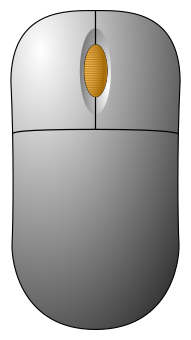
Pick Block | key.pickItem | Pressing that button while looking at a block or an entity makes the game attempt to put a corresponding item for the block or entity in the player's hand. For blocks, it is simply the block in item form. For mobs, the game places the corresponding spawn egg in the player's hand. This also works on boats, all types of minecarts, paintings, and armor stands[Java Edition only][1] to get the entity in item form. If the item is in the hotbar, it switches the selected hotbar slot to the slot with that item. If the item is not in the hotbar, but in the player's inventory, it moves that item from the inventory into the hotbar. If no hotbar slot is empty, the item selected is replaced. In Creative mode, if the item is not in the inventory, the game gives the player that item.
Hovering over an item in any inventory and clicking with the mouse wheel when in Creative gives one full stack of that item. Dragging over slots of inventory/container while holding an item fills them with full stacks of copies of that item. If used on a tile entity while holding Ctrl, or ⌘ Cmd (for some Mac computers), the tile entity's nbt data are copied. The block given to the player has the Lore: (+DATA)[Bedrock Edition only]. |
|
|
Use Item/Place Block | key.use |
Place blocks, summon entities with spawn eggs, toggle levers/doors (click once), charge a bow (release to fire), crossbow, use crossbow, block using a shield, use special blocks like chests, doors, and levers, enter vehicles, eat food, drink potions, till farmland, shear or dye a sheep, command tamed wolves and cats to sit, trade with villagers, place fire using flint and steel or a fire charge, name a mob with a name tag, attach a lead to an animal or attach an animal on a lead to a fence, cast or reel in a fishing rod, throw a splash potion, egg, ender pearl, eye of ender, bottle o' enchanting, or snowball, equip armor from the hotbar if the associated armor slot is empty, eating cake, starting a furnace minecart, open book and quill and written book, use debug stick, add mob in a monster spawner. Commonly, if both the item held and the block clicked on has a such purpose (like trying to place dirt on a chest), the block overrules the item. This also means a player can punch an entity while eating/drinking, however the eating/drinking resets when a player presses Button 1. This button also uses items in the off-hand. Only items with a right click function can be used, and they are available only if the item in the main hand does not have a right click action, or its right click action cannot be performed. |
| Inventory | |||
| Q | Drop Selected Item | key.drop | Drop/toss an item. If items are stacked, only one gets thrown/tossed/dropped. In recent versions of Java Edition, holding the key causes single items to be dropped quickly from a stack. There is no actual "throw" command; "drop" (default Q) tosses an object approximately 2 to 3 blocks from the player. Eggs, ender pearls, eyes of ender, and snowballs can be thrown by the "use" command (default right-clicking). Ctrl + Q drops the whole stack of items.
(On Mac, even though most shortcuts prefer ⌘ Cmd over Ctrl, Ctrl + Q is still the "drop stack" bind. This is because ⌘Q is MacOS’s standard shortcut for quitting apps.) Note that there is no corresponding Pick Up command. Dropped items are picked up (if there is room in inventory/hotbar) by moving near them. Placed items are picked up by "mining" (e.g. chopping up a sign with an axe), when they behave as dropped items and can be picked up as such. |
| 1–9 | Hotbar Slot 1–9 | key.hotbar.1–key.hotbar.9 | Selects the appropriate hotbar item. When in the inventory GUI, swap the contents of the inventory slot under the mouse pointer and the corresponding hotbar slot. |
| E | Open/Close Inventory | key.inventory | Opens the inventory. Close any open GUI. |
| F | Swap Items In Hands | key.swapOffhand | Switches the items in the players main and off-hand. When in the inventory GUI, swap the contents of the inventory slot under the mouse pointer and the off-hand slot. |
| Creative Mode | |||
| X | Load Toolbar Activator | key.loadToolbarActivator | Press this key + any number, to access any of the 9 saved toolbars. |
| C | Save Toolbar Activator | key.saveToolbarActivator | Press this key + any number, to save the current toolbar under that number. |
| Multiplayer | |||
| Tab ↹ | List Players | key.playerlist | In Multiplayer, hold the Tab ↹ key to see a list of players.
When in the chat window, Tab ↹ cycles through possible commands or arguments and also complete player names. |
| T | Open Chat | key.chat | Chat and server commands. If pressed while the Creative mode inventory is open, it switches to the Search tab. |
| / | Open Command | key.command | Opens the chat window with the "/" character already typed. On some keyboards (Nordic layout at least) this button might be asterisk/apostrophe: * '. |
| P | Social Interactions Screen | key.socialInteractions | Gives players the ability to disable chatting with certain players, thus hiding any messages receiving from them. Whether a player is hidden resets when re-joining a server. |
| Miscellaneous | |||
| L | Advancements | key.advancements | Open the advancements screen. |
| Not bound | Highlight Players (Spectators) | key.spectatorOutlines | Highlights players in Spectator mode. |
| G | Quick Actions | key.quickActions | Opens a dialog or a list of dialogs in the minecraft:quick_actions dialog tag configured by the world or server.
|
| F2 | Take Screenshot | key.screenshot | Simply pressing this key takes a screenshot and place it in: %appdata%\.minecraft\screenshots on Windows |
| Not bound | Toggle Cinematic Camera | key.smoothCamera | Toggles mouse smoothing. Looking around becomes a slow, smooth and more cinematic motion. |
| F11 | Toggle Fullscreen | key.fullscreen | Toggles full-screen mode.
When using some Apple keyboards, F11 must be pressed while holding Fn and ⌥ Option to enter fullscreen. Using F11 alone toggles Exposé, and pressing F11 while holding Fn turns down the volume or vice versa, depending on system preferences. Some people are experiencing a bug while exiting from full-screen mode that causes an inescapable black screen. When that's the case, use Alt + Tab ↹ to switch out of Minecraft and switch it back to windowed mode. On Linux, mouse input is often buggy while in full-screen mode. After entering full-screen mode on Linux, the mouse typically restricts the player to a single 360-degree rotation. This can be fixed by hitting Esc to release the mouse then hitting Esc again to regrab it. Also, note that this may not respect multiple monitors and Minecraft may occupy all screens instead of the one it is active on. |
| F5 | Toggle Perspective | key.togglePerspective | Toggles between first person, third person from the back and third person from the front. |
Bedrock Edition

Keyboard & Mouse
The keyboard and mouse controls are similar to Java Edition, with a few differences. These controls can be changed in the Options. Keyboard controls are unavailable on the Nintendo Switch and are normally unavailable on Android, iOS, iPadOS, and Fire, but are possible to use from connected external keyboards. Mouse controls are unavailable on the Nintendo Switch.
The game will enter keyboard & mouse mode when it receives a mouse event, but key event won't.[needs testing]
- Non-configurable controls
| Action | Function |
|---|---|
|
|
Picks up an item from a slot (a stack from Creative inventory) (click once); Splits a stack evenly (hold and drag); sort loose items into one stack (double-click) |
|
|
Picks up an item from a slot; Picks up an item from a slot in half; Places one item from a stack in each inventory slot (hold and drag); |
|
|
Turning; aiming; camera movement. |
|
|
Scrolls through the Hotbar, inventory menus, and the chat when opened. |
| Esc | Opens up the menu and gives back cursor control. Closes any open GUI. Exits the chat/command window. |
| F1 | Toggles the Heads-Up Display. |
| F8 | Toggles the paper doll from showing. |
| F11 | Toggles full screen mode. |
| ⇧ Shift | When the inventory is open, ⇧ Shift + clicking on an item or stack moves it between the inventory and the hotbar. ⇧ Shift + clicking on a piece of armor moves the piece between inventory and the armor slots.
When a container is open, ⇧ Shift + clicking on an item transfers it between the container and the inventory. Existing stacks are filled first, then empty slots from top to bottom then from left to right. When a furnace is open, ⇧ Shift + clicking an item or stack in the furnace moves it to the inventory, and ⇧ Shift + clicking an item or stack in the inventory moves it into the input slot of the furnace. Fuel items move into the fuel slot first if it is empty or if the item that occupied the slot is less than a stack of the same kind. When crafting, ⇧ Shift + clicking the crafted item automatically crafts the maximum number of that item for the materials being used (up to one stack), and moves all crafted items to the inventory. ⇧ Shift + clicking an item from the Creative inventory menu puts the maximum stack of the item onto the hotbar (inventory if full). |
| ↑, ↓, ←, → | Switch the highlighted slot or interactable buttons onto another; Move the dragged item onto a different slot or other interactable buttons. |
- Configurable controls
| Default | In-game option name | Function |
|---|---|---|
|
|
Attack/Destroy | Destroys blocks (hold down); Attacks (click once). |
|
|
Pick Block | Pressing that button while looking at a block or an entity causes the game to attempt placing a corresponding item for the block or entity in the player's hand. For blocks, it is simply the block in item form. For mobs, the game places the corresponding spawn egg in the player's hand. This also works on boats, all types of minecarts, paintings, and armor stands[Java Edition only][2] to get the entity in item form. If the item is in the hotbar, it switches the selected hotbar slot to the slot with that item. If the item is not in the hotbar, but in the player's inventory, it moves that item from the inventory into the hotbar. If no hotbar slot is empty, the item selected is replaced. In Creative mode without the item in the inventory, the game gives the player that item.
If used on a tile entity while holding Ctrl, the tile entity's nbt data is copied. The block given to the player has the Lore: "(+DATA)." |
|
|
Use Item/Place Block | Places blocks, interact with blocks, entities, or items, equip armor from the hotbar if the associated armor slot is empty.
If both the item held and the faced block interactable, the block overrules the item; that is, the player interacts with the block. |
| Q | Drop Item | Drop/toss an item. If items are stacked, only one is thrown/tossed/dropped. Ctrl + Q drops the whole stack of items. |
| 1–9 | Hotbar Slot 1–9 | Selects the appropriate hotbar item. When in the inventory GUI, swap the contents of the inventory slot under the mouse pointer and the corresponding hotbar slot. |
| E | Inventory | Opens the Inventory. Closes any open GUI. |
| F5 | Toggle Perspective | Toggles between first person, third person from the back, and third person from the front. |
| Space | Jump/Fly Up | Jumps the player. When swimming, keeps the player afloat. Double-tapping toggles Fly Mode (Creative only). Causes the player to ascend while flying. |
| M | Decline | Declines any toasts shown on the HUD. |
| ⇧ Shift | Sneak/Fly Down | Sneak. When Fly Mode is on, causes the player to sneak midair and lose altitude (descend).
Holding ⇧ Shift and pressing use on an interactable block with a block in hand overrides the use action and places the block instead. Dismounts the player from rideable entities. |
| Ctrl | Sprint | Starts sprinting. Speed increases when Fly Mode is on. |
| A | Strafe Left | Moves the player leftward. |
| D | Strafe Right | Moves the player rightward. |
| S | Walk Backward | Moves the player backward. |
| W | Walk Forward | Moves the player forward. |
| Z | Mob Effects | Opens/closes the Status effects window. |
| T, ↵ Enter | Chat button | Opens/closes the chat window. |
| / | Open Command | Opens the chat window with the "/" character already typed. |
| B | Emote | Open/closes the emote menu. |
| F2 | Take Screenshot | Simply pressing this key takes a screenshot and stores it in the screenshot gallery, which is accessible under the profile screen. Screenshots are automatically saved on the com.mojang/Screenshots directory.
|
| [ | Menu Tab Left | Cycles the inventory/world menu/settings tabs to the left. |
| ] | Menu Tab Right | Cycles the inventory/world menu/settings tabs to the right. |
BUTTON5(the return button on a mouse)
|
Menu Cancel | Closes a menu screen/returns to the previous menu screen. |
| N | Open Notification | Opens/closes a toast notification. |
| Ctrl + Alt + C | Copy Coordinates. | Copies the player's current coordinates. Only available when the "Copy Coordinate GUI" option in the Creator settings tab is enabled. Only the last key of this keybind is configurable. |
| Ctrl + Alt + X | Copy Facing Coordinates. | Copies the coordinates of the block the player is facing. Only available when the "Copy Coordinate GUI" option in the Creator settings tab is enabled. Only the last key of this keybind is configurable. |
If "Full Keyboard Gameplay" is enabled, the following inputs are made available/used instead.
| Default | In-game option name | Function |
|---|---|---|
| - | Look Up Slight | Moves the camera 15 degrees up. |
| + | Look Down Slight | Moves the camera 15 degrees down. |
| Numpad 9 | Look Up Right | Moves the camera 45 degrees up-right. |
| Numpad 8 | Look Up | Moves the camera 45 degrees up. |
| Numpad 7 | Look Up Left | Moves the camera 45 degrees up-left. |
| Numpad 6 | Look Right | Moves the camera 45 degrees right. |
| Numpad 5, End, \ | Look Center | Moves the camera to the middle. |
| Numpad 4 | Look Left | Moves the camera 45 degrees left. |
| Numpad 3 | Look Down Right | Moves the camera 45 degrees down-right. |
| Numpad 2 | Look Down | Moves the camera 45 degrees down. |
| Numpad 1 | Look Down Left | Moves the camera 45 degrees down-left. |
| ↑ | Look Up Smooth | Moves the camera up smoothly. |
| ↓ | Look Down Smooth | Moves the camera down smoothly. |
| ← | Look Left Smooth | Moves the camera left smoothly. |
| → | Look Right Smooth | Moves the camera right smoothly. |
| PgUp | Cycle Item Left | Cycles the selected hotbar to the left. |
| PgDn | Cycle Item Right | Cycles the selected hotbar to the right. |
| N | Open Notification | Opens/closes a toast notification. |
| Q | Attack/Destroy | Functions are equivalent to left click in normal mode. |
| X | Pick Block | Functions are equivalent to middle click in normal mode. |
| E | Use Item/Place Block | Functions are equivalent to right click in normal mode. |
| Z | Drop Item | Functions are equivalent to Q in normal mode. |
| 1–9 | Hotbar Slot 1–9 | Functions are the same as in normal mode. |
| C | Inventory | Functions are equivalent to E in normal mode. |
| F5 | Toggle Perspective | Functions are the same as in normal mode. |
| Space bar | Jump/Fly Up | |
| ⇧ Shift | Sneak/Fly Down | |
| Ctrl | Sprint | |
| A | Strafe Left | |
| D | Strafe Right | |
| S | Walk Backward | |
| W | Walk Forward | |
| Tab ↹ | Mob Effects | Functions are equivalent to Z in normal mode. |
| T, ↵ Enter | Chat button | Functions are the same as in normal mode. |
| / | Open Command | |
| B | Emote | |
| F2 | Take Screenshot | |
| [ | Menu Tab Left | |
| ] | Menu Tab Right | |
| P | Menu Cancel | |
| Ctrl + Alt + Unassigned | Copy Coordinates. | Copies the player's current coordinates. Only available when the "Copy Coordinate GUI" option in the Creator settings tab is enabled. Only the last key of this keybind is configurable. |
| Ctrl + Alt + Unassigned | Copy Facing Coordinates. | Copies the coordinates of the block the player is facing. Only available when the "Copy Coordinate GUI" option in the Creator settings tab is enabled. Only the last key of this keybind is configurable. |
Controller
The "Controller" controls for gamepads are similar to the Xbox One, Nintendo Switch, and PlayStation 4 editions, with some differences. All of these controls, except the control sticks and menu controls, can be changed in the Options. The Nintendo Switch version can be played with a pair of Joy-Con or Joy-Con 2 controllers, the Nintendo Switch Pro Controller, the Nintendo Switch 2 Pro Controller, or the Nintendo Switch Lite. It cannot be played with a single Joy-Con or Joy-Con 2 controller, as they do not have enough buttons or control sticks. If the gamepad has two control sticks, then the left stick ( /
/ /
/ /
/ /
/ ) would be used for moving and the right stick (
 /
/ /
/ /
/ /
/ ) would be used for looking. The blank spaces mean that the function is, by default, left unassigned and it is up to the player to assign a button to it. All platforms support gamepads.
| Default | Function | ||||
|---|---|---|---|---|---|
      
|
|

| |||

|

|
 │ │ 
|

|

| |

|

|

|

|

|
Menu (non-configurable) |
|
|
|
|
|
|
Look (non-configurable) |

|

|

|

|

|
Jump/Fly Up |

|

|
 / /
|

|

|
Drop Item |

|

|

|

|

|
Attack/Destroy |

|

|

|

|

|
Use Item/Place Block |

|

|

|

|

|
Crafting |

|

|

|

|

|
Inventory |

|
|

|

|

|
Cycle Item Left |

|
|

|

|

|
Cycle Item Right |

|

|
 / /
|

|

|
Toggle Perspective |

|

|

|

|

|
Sneak/Fly Down |

|
|

|
|

|
Sprint |
| Fly Up Slow | |||||

|
|

|
|

|
Fly Down Slow |

|

|
 / /
|

|

|
Emote |

|

|

|

|

|
Open Notification/Mob Effects |

|

|
 / /
|

|

|
Chat button |

|
|
|
|
|
Strafe Left |

|
|
|
|
|
Strafe Right |

|
|
|
|
|
Walk Backwards |

|
|
|
|
|
Walk Forwards |
| Pick Block | |||||
-
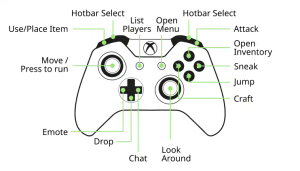 Default Xbox controller diagram
 -
 Default Nintendo Switch controller diagram
 -
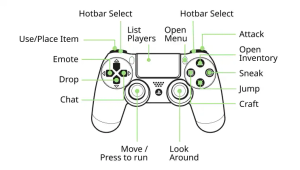 Default PS4 controller diagram
Touch
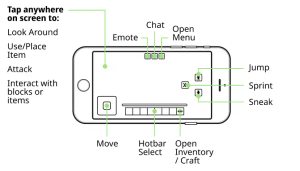
"Touch" controls for touchscreen devices use controls shown on the screen. Split-touch controls displays a cross hair, which can be set in Settings. Movement and interact controls can be changed by selecting control mode in Settings, with the ability to customize the buttons. Touch controls are available on devices that is touch-enabled except the Nintendo Switch, where the touchscreen can only be used to interact with the hotbar, inventory, and menus.
The game will enter touch mode when it receives a touch event.[needs testing]
| Action | Function |
|---|---|
 |
Joystick. Moves the player. Moving the knob to the top causes the player to sprint if "Sprint using the joystick" is turned on. |
 |
Sprint button, joystick only. Increase speed when Fly Mode is on. The button disappears if "Sprint using the joystick" is turned on. |
 |
Move forward. When double-tapped, causes the player to sprint (unless the character is too hungry). When Fly Mode is on, double-tapping increases the speed at which the player flies. Attempting to sprint (Double-Tap) while fully submerged underwater initiates swimming. While tapped,  and and  appears. appears.
|
 |
Move backward. While tapped,  and and  appears. appears.
|
 |
Strafe left. While tapped, and appears.
|
 |
Strafe right. While tapped, and appears.
|
|
Strafe left while moving forward. |
|
Strafe right while moving forward. |
|
Strafe left while moving backward. |
|
Strafe right while moving backward. |
 |
Jump. When swimming, keeps the player afloat, the button changes to  . When double-tapped in Creative mode, the player is able to fly, the button changes to . When double-tapped in Creative mode, the player is able to fly, the button changes to  . .
|
 |
Double tap to toggle sneaking, and the button changes to  . Double tap again to toggle back, the button reverts to . When swimming, the button changes to . Double tap again to toggle back, the button reverts to . When swimming, the button changes to  . When flying, the button changes to . When flying, the button changes to  . .
|
|
Swim up. When getting out of the water or lava, the button reverts to .
|
|
Swim down. When getting out of the water or lava, the button reverts to .
|
|
Fly up, when flying in Creative mode. When double-tapped, the player no longer flies, the button reverts to .
|
|
Fly down, when flying in Creative mode. When double-tapped, the player no longer flies, the button reverts to .
|
 |
Unused button, apparently it would be the mount button. Mount the player from horse or camel. |
 |
Dismount button. Dismounts the player from horses or camels. |
 |
Unused button, apparently it would be the mount button. Mount the player from boats or mine carts. |
 |
Dismount button. Dismounts the player from boats or mine carts. |
 |
Attack button, only visible with "Joystick & aim crosshair" control mode. Attack mobs and destroy blocks. |
 |
Interact button, only visible with "Joystick & aim crosshair" control mode. Places blocks, interact with blocks, entities, or items, equip armor from the hotbar if the associated armor slot is empty.
If both the item held and the faced block interactable, the block overrules the item; that is, the player interacts with the block. |
 |
Pick block button, can be turned on with the toggle. Pressing that button while looking at a block causes the game to attempt placing a corresponding item for the block in the player's hand. |
 |
Opens the Emotes menu. |
 |
Opens the Chat screen. |
 |
Opens the game menu. |
 |
Perspective button, can be turned on with the toggle. Toggles between first person, third person from the back, and third person from the front. |
 |
Used for the Agent.[Minecraft Education only] |
| Move Camera | Slide/move finger across the screen. |
| Place Block | By default (split controls is disabled), tap the desired area to place the block. When split controls is enabled, position the camera so that the crosshair is pointed at the desired area and tap anywhere on the screen (excluding the HUD) to place the block. |
| Break Block | Hold finger down on the desired block to break. How long it takes to break the block is indicated by an icositetragonal icon on the screen, varying on the tool being used to break it. When split controls is enabled, position the camera so that the pointed at the desired block and hold anywhere on the screen (excluding the HUD) to break the block. |
| Drop item | Long-press on a hotbar slot for about 2 seconds[verify] to drop the entire stack. You can also open the GUI, tap on the stack, then tap somewhere outside of GUI. |
| Use Block | By default (split controls is disabled), tap the desired block to use its functionality. When split controls is enabled, position the camera so that the crosshair is pointed at the desired area and tap anywhere on the screen (excluding the HUD) to use its functionality. |
| Interact button |  Some items have extra functionality, and these can be executed when either long-pressing on the target or tapping the interaction button, located on top of the hotbar. These are listed below:
|
| Split stack |  |
| Split stack evenly | Open GUI and tap on a stack, then tap-and-slide across two or more empty slots to split the stack evenly between them. |
| Consolidate stacks | Open GUI and double-tap on a stack. Partial stacks of this item consolidate into a single stack. |
| Mass crafting | Long-press on recipe result for mass crafting. Works faster if no other visible recipe is affected by the current one (for example, while converting sugarcane into paper, the number of potential sugar available is recalculated on the go. Switching to – for example – Construction tab, speeds up the process because no other recipe needs to be recalculated now.) |
Legacy versions
These versions have either been discontinued or long forgotten about. However, their controls are documented here for historical purposes.
Pi Edition
All of the controls in the Pi Edition are fixed and cannot be changed.
| Action | Function |
|---|---|
|
|
Turning; aiming; third person camera movement. |
|
|
Destroy blocks (hold down shortly); Move a block from the selection screen to the first hotbar slot, pushing the rest of the items one slot to the right. |
|
|
Place blocks; Charge a bow (firing is broken). |
|
|
Scrolls through the Hotbar. |
| Esc | Opens up or closes the menu and gives back cursor control. |
| 1–8 | Selects the appropriate Hotbar item. |
| W | Move forward. |
| A | Strafe left. |
| S | Move backward. |
| D | Strafe right. |
| Space bar | Jump. When double-tapped, toggles Fly Mode. When Fly Mode is on, causes the player to gain altitude (ascend). |
| Left ⇧ Shift | Sneak. When Fly Mode is on, causes the player to lose altitude (descend). |
| E | Open the list of blocks. |
| Tab ↹ | Release the mouse cursor from the game window without opening the pause menu. |
Pocket Edition: Xperia Play
| Action | Function |
|---|---|
| Right Bumper | Place block |
| Left Bumper | Destroy block |

|
Open inventory |

|
Cycle right in the hotbar |

|
Jump |

|
Cycle left in the hotbar |
| Directional Keys | Movement |
| Left Touch Pad | Sneak |
| Right Touch Pad | Moves the camera |
| Menu | Open game menu |
| Touch Screen | Chat (multiplayer only). Tap to change selection in hotbar |
| Search Button | Toggle third person view |
Note: For Xperia Play owners using the gamepad, while in Creative mode, the lowest two rows of items are beneath the screen, and one cannot scroll down to see them. They are still accessible, but it requires either remembering how many times one has to press the directional buttons to access them, or trial-and-error. This is most prominent in the 4.0 update, as the amount of items has increased, and now sixteen items are hidden. The only way to see them is to turn on the option to use touch controls in the options menu.
Legacy Console Edition
Notes
- On the PlayStation Vita Edition (when playing on the PlayStation Vita), Wii U Edition (when playing on the Wii U GamePad), and Nintendo Switch Edition (when playing in Tabletop or Handheld mode), the touchscreen can be used to control the tooltips shown at the bottom of the screen (if enabled), as well as the menus and inventory.
- Likewise, on the PlayStation 4 Edition, the Touch pad can be used to move the inventory cursor as well as control the menus by swiping.
- The Wii U Edition can be played with a Wii U GamePad, Wii U Pro Controller, Classic Controller, or Classic Controller Pro. It cannot be played with a Wii Remote, Wii Remote Plus, or Nunchuk.
- Note: While the Wii U Edition can not be played with a Wii Remote or Wii Remote Plus, a Wii Remote or Wii Remote Plus is required to play with a Classic Controller or Classic Controller Pro.
- The Nintendo Switch Edition can be played with a pair of Joy-Con, the Nintendo Switch Pro Controller, or the Nintendo Switch Lite. It cannot be played with a single Joy-Con, as it does not have enough buttons or control sticks.
Gameplay
| Default | In-game option name | Function | ||||||
|---|---|---|---|---|---|---|---|---|

|
|

|
|

|

|
| ||

|

|

|
|

|

|
|
Pause | Pause the game |

|

|

|
|

|

|
|
Players | Shows the list of players in-game. |

|
|

|
|

|

|
|
Move | Look/move; when quickly pushed forward and then moved, enables sprinting while the button is held. |

|
|

|
|

|

|
|
Look | Look/move |

|

|

|
|

|
(press)[a]/ [b] [b]
|
|
Change Camera Mode | Change the camera angle (toggles First Person, Second Person, and Third Person view) |

|

|

|
|

|
(press)[a]/ [b] [b]
|
|
Sneak | Sneak/walk or in Creative mode, to lower the height while flying. |

|

|
|
|

|

|
|
Jump | Jump |

|

|
|
|

|

|
|
Drop | Drop/toss an item from the Hotbar. If items are stacked, only one gets thrown/tossed/dropped.[c] |

|

|
|
|

|

|
|
Crafting / Creative | Open up Crafting menu, or the item list if in Creative mode If the "Classic Crafting" option is enabled, it opens the inventory. |

|

|
|
|

|

|
|
Inventory | Open up the Inventory |

|

|

|
|

|

|
|
Cycle Held Item (Left) | Cycle left in the Hotbar |

|

|

|
|

|

|
|
Cycle Held Item (Right) | Cycle right in the Hotbar |

|

|

|
|

|

|
|
Place | Place blocks; Fire with a bow; block using a sword; use special blocks such as chests, doors, and levers; enter vehicles; toggle levers/doors (click once) |

|

|

|
|

|

|
|
Mine | Destroy blocks; Mine/destroy blocks (hold down); attack (click once). |
- ↑ a b Wii U GamePad and Wii U Pro Controller.
- ↑ a b Classic Controller and Classic Controller Pro.
- ↑ There is no actual "throw" command; "drop" (default //////) tosses an object approximately 2 to 3 blocks from the player. Eggs and snowballs can be thrown by the "use" command (default //////). The eggs and snowballs fly in an arc.
In crafting
| Default | In-game option name | Function | ||||||
|---|---|---|---|---|---|---|---|---|
|
|
|
|
|
|
|
| ||
//
|
//
|
//
|
// / /
|
// / /
|
//
|
// / /
|
Pointer/Move | Move pointer/selected block/item |
|
|
|
|
|
|
|
|
Craft | Create items |
|
|
|
|
|
|
|
|
Exit | Exit the crafting table menu |
|
|
|
|
|
|
|
|
Split and Desc. | Take half of the highlighted stack/show information about the selected block/item |
|
|
|
|
|
|
|
|
Quick Move | Quickly moves a block/item into its appropriate space |
|
|
|
|
|
|
|
|
Change Group (Left) | Changes the groups of craftable items, moving left |
|
|
|
|
|
|
|
|
Change Group (Right) | Changes the groups of craftable items, moving right |
New Nintendo 3DS Edition
All of the controls in the New Nintendo 3DS Edition are fixed and cannot be changed.
| Action | Function |
|---|---|

| |
| START/SELECT | Pause |
| Circle Pad | Move |
| C Stick | Look |
|
|
Jump/Fly Up |
|
|
Drop Item |
| R | Attack/Destroy |
| L | Use Item/Place Block |
|
|
Crafting |
|
|
Inventory |
ZL/
|
Cycle Item Left |
ZR/
|
Cycle Item Right |
|
|
Toggle Perspective |
|
|
Sneak/Fly Down |
Old keys
History
- Missing information from Java Edition and legacy console, when each button had its action added or changed?
Java Edition
| Java Edition Beta | |||||||
|---|---|---|---|---|---|---|---|
| 1.8 | pre2 | Added pick block. | |||||
| Java Edition | |||||||
| 1.2.4 | Pressing F3 (Fn + F3 on Mac and some laptops) brings up the debug screen, but without the graphs. The graph appears upon pressing ⇧ Shift + F3 (Fn + ⇧ Shift + F3 on Mac and some laptops). | ||||||
| 1.3.1 | ? | Pick block now actually choses the targeted block. Previously the item was chosen based on the item the block drops. For example pick blocking gravel had a chance to give a flint. Pick blocking entities always chose bedrock. | |||||
| 12w15a | The appropriate spawn egg is now given when pick blocking a mob while in Creative mode. | ||||||
| ⇧ Shift+clicking can now be used to equip armor. | |||||||
| ⇧ Shift+clicking can now be used to put items in enchantment tables. | |||||||
| ⇧ Shift+clicking can now be used to put items in brewing stands. However, it does not work with the third potion slot yet. | |||||||
| 12w16a | Items can now be deleted from the hotbar by shift-clicking while on the Creative mode item selection screen. | ||||||
Typing / then pressing Tab ↹ shows a list of available commands; pressing Tab ↹ while writing a command auto-completes its arguments. | |||||||
| 12w22a | Pressing F reloads the chunks. | ||||||
| 12w23a | Pressing F no longer reloads chunks. | ||||||
| 1.3.2 | The player can now toggle showing server addresses in the server list by pressing F1. | ||||||
| 1.4.2 | 12w34a | F3 + P toggles the auto-pause when the window loses focus (mainly for debugging). | |||||
| F3 + H toggles detailed item descriptions (also for debugging). | |||||||
| 12w41a | F3 + H now shows tool and armor durability on damaged items – on maps it shows the zoom level. | ||||||
| The pie chart on the debug overlay is now shown when opening it using ⇧ Shift + F3 instead of vice versa. | |||||||
| 1.7.2 | 13w36a | The camera switching key, default set to F5, can now be rebound. | |||||
| Added "Sprint" button, defaulting to Left Ctrl. | |||||||
| 1.12 | 17w13a | Added the narrator. It can be toggled on and off with Ctrl + B or ⌘ Cmd + B on Mac. | |||||
| 1.20.2 | 23w33a | Added "Narrator Hotkey" option to accessibility settings. It allows the narrator to be toggled with Ctrl + B. | |||||
| 1.21.2 | 24w34a | Space bar, ↵ Enter, Numpad Enter now repeat the last recipe from the recipe book. Holding ⇧ Shift repeats entire stacks. | |||||
| 1.21.4 | 24w44a | The pick block function now also works on entities in Survival and Adventure mode. Previously it only worked in Creative mode. | |||||
| 1.21.6 | 25w20a | The G key now opens the new dialog screen as a configurable button. | |||||
| Upcoming Java Edition | |||||||
| 1.21.11 | 25w41a | Several uses of the ⌘ Cmd key on Mac have been rebound to ctrl. | |||||
| Keys used to access debug features can now be rebound. | |||||||
| The debug modifier key can be bound separately from the debug overlay key. | |||||||
| The key to toggle GUI can now be rebound. | |||||||
| The key to toggle spectator shader effects, such as when spectating an enderman, can now be rebound. | |||||||
Bedrock Edition
| Pocket Edition Alpha | |||||||
|---|---|---|---|---|---|---|---|
| v0.1.1 |  The dpad has been added for touch devices. The dpad has been added for touch devices. | ||||||
| v0.1.2 | The search button was added used to be able to change the camera to and from third person view on all Android devices. | ||||||
| v0.3.0 |  The pause button has been added for touch devices. The pause button has been added for touch devices. | ||||||
| The search button was removed. | |||||||
| v0.6.0 |           The dpad has had its texture updated in addition to the addition of flight button. The dpad has had its texture updated in addition to the addition of flight button. | ||||||
| v0.7.0 |  The chat button has been added. The chat button has been added. | ||||||
| v0.9.0 | build 1 | Added interact button. | |||||
| v0.12.1 | build 1 | The buttons have been divided on the screen. | |||||
  Added sneak button. Added sneak button. | |||||||
| Bedrock Edition | |||||||
| 1.16.0 | beta 1.15.0.51 |  The emote button has been added but is inaccessible. The emote button has been added but is inaccessible. | |||||
| beta 1.16.0.57 | The emote button is now accessible during gameplay. | ||||||
| 1.16.200 | (for Windows only) Toggles between RTX rendering and the default. This only works if there is an active RTX resource pack. | ||||||
| 1.16.210 | beta 1.16.210.53 | Fullscreen can now be toggled with F11 keyboard shortcut. | |||||
| 1.18.30 | Preview 1.18.30.23 |     New buttons have been added available only in aim and touch mode currently only available in preview. New buttons have been added available only in aim and touch mode currently only available in preview. | |||||
| 1.19.10 | Preview 1.19.10.20 | Joystick texture has been changed. | |||||
| Preview 1.19.10.22 | Interaction button has had its texture changed. | ||||||
| 1.19.30 | New buttons are now available outside of preview. | ||||||
| 1.19.30 | Preview 1.19.30.21 | Added keyboard shortcuts that allow players to copy either their current coordinates or the coordinates of a block. | |||||
| Ctrl + Alt + C is the default for copying current coordinates. | |||||||
| Ctrl + Alt + X is the default for copying coordinates of selected block. | |||||||
| Needs the "Enable Copy Coordinate UI" enabled in Creator settings. | |||||||
| 1.20.30 | Preview 1.20.30.21 | Updated the menu HUD icons for touch controls. | |||||
| 1.20.70 | Preview 1.20.70.20 |
The button's textures of the "D-Pad & tap to interact" touch control mode have been updated. | |||||
| Removed cancel flight button from Creative. | |||||||
| 1.21.30 | Preview 1.21.30.21 | Added two new down directionals. | |||||
| 1.21.50 | Preview 1.21.50.26 | Added pick block button is currently only available in Creative and requires going into touch settings to enable. | |||||
| 1.21.60 | Preview 1.21.60.23 | The pick block is now also available in Survival. | |||||
| 1.21.70 | Preview 1.21.70.25 | Added the perspective button, it is used to change the player's perspective, it can be enabled in the touch settings. | |||||
| 1.21.80 | Preview 1.21.80.20 | Dismount button and mount button were removed. | |||||
| Horse ride and horse exit have been added to mount and exit horses and camels, however only the exit button is used in game. | |||||||
| Box ride and box exit have been added to enter and exit minecarts and boats, however only exit is used in game. | |||||||
| 1.21.90 | Preview 1.21.90.25 | Removed the ability to press ; to toggling graphics modes. | |||||
| 1.21.100 | Preview 1.21.100.20 | Added a key to decline toasts shown on the HUD to keyboard & mouse controls, M by default. | |||||
| 1.21.120 | Preview 1.21.120.23 | It is now possible to put items from the inventory to the hotbar using their corresponding number key 1–9. | |||||
| Upcoming Bedrock Edition | |||||||
| 1.21.130 | Preview 1.21.130.20 |
                                                New textures have been added for keyboard controls to match Ore UI. | |||||
Minecraft Education
| Minecraft Education | |||||||
|---|---|---|---|---|---|---|---|
| 1.7.0 |  Added agent button. Added agent button. | ||||||
| 1.14.31 |  Added immersive reading button. Added immersive reading button. | ||||||
| 1.21.03 | The agent button texture has been updated. | ||||||
Legacy Console Edition
| Legacy Console Edition | |||||||
|---|---|---|---|---|---|---|---|
| Xbox 360 | Xbox One | PS3 | PS4 | PS Vita | Wii U | Switch | |
| TU1 | CU1 | 1.00 | 1.00 | 1.00 | Patch 1 | 1.0.1 | Added controls. |
| TU36 | CU25 | 1.28 | 1.28 | 1.28 | Patch 7 | Added a Safe Sprint option. Depending on the controls layout selected, this option moves either the Change Camera Mode or the Sneak/Dismount away from the stick button, since a lot of people are pressing the stick by accident when they start sprinting. | |
| TU53 | CU43 | 1.49 | 1.50 | 1.49 | Patch 23 | 1.0.3 | Players can now rebind any button individually (except host options) like on Java Edition. This gives access to a sprint button and the pick block functionality. |
| TU54 | CU44 | 1.52 | 1.52 | 1.52 | Patch 24 | 1.0.4 | The pick block function now has a tooltip. |
| ? | ? | ? | ? | ? | ? | ? | The pick block function now also works on entities in Survival and Adventure mode. Previously it only worked in Creative mode. |
Issues
Issues relating to "Controls" are maintained on the bug tracker. Issues should be reported and viewed there.
Gallery
Screenshots
-
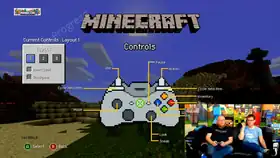 Xbox 360 Edition 1.66.0016.0 controls
 -
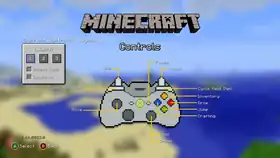 Xbox 360 Edition 1.66.0033.0 controls
 -
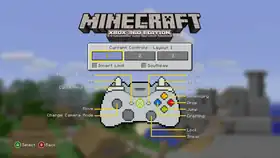 Xbox 360 Edition 0.66.0054.0 controls
 -
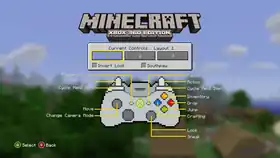 Xbox 360 Edition TU1 controls
 -
 Xbox 360 Edition TU5 controls
 -
 Xbox 360 Edition TU7 controls
 -
 Xbox 360 Edition TU9 controls
 -
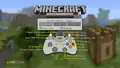 Xbox 360 Edition TU12 controls
 -
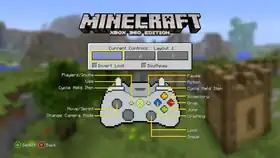 Xbox 360 Edition TU14 controls
 -
 Xbox 360 Edition TU20 controls
 -
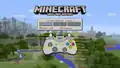 Xbox 360 Edition TU31 controls
 -
 Xbox 360 Edition TU36 controls
 -
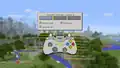 Xbox 360 Edition TU43 controls
 -
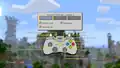 Xbox 360 Edition TU46 controls
 -
 Xbox 360 Edition TU57 controls
 -
 Xbox 360 Edition TU69 controls
Ore UI control icons
Keyboard and mouse controls
- A key
- B key
- C key
- D key
- E key
- F key
- G key
- H key
- I key
- J key
- K key
- L key
- M key
- N key
- O key
- P key
- Q key
- R key
- S key
- T key
- U key
- V key
- W key
- X key
- Y key
- Z key
- ALT key
- Down arrow key
- Left arrow key
- Right arrow key
- Up arrow key
 Close bracket
- Small close bracket key
 Open bracket
- Small open bracket key
- Control key
- Small control key
- Enter key
- ESC key
- F2 key
- Mouse
- Left mouse click
- Right mouse click
- Scroll wheel click
- Scroll
- Shift key
- Space key
- / key
- TAB key
- Touch selection
Controller controls
 A button, Nintendo Switch
 X button, PS4
 A button, Xbox
 X button, PS5
 B button, Nintendo Switch
 O button, PS4
 O button, PS5
 B button, Xbox
 Down, d-pad, Xbox
 Down, d-pad, PS4
 Down button, Nintendo Switch
 Down, d-pad, PS5
 Down, left stick, PS5
 Down, left stick, Xbox
 Down, left stick, Nintendo Switch
 Down, left stick, PS4
 Left bumper, Xbox
 Left bumper, PS5
 Left bumper, PS4
 Left bumper, Nintendo Switch
 Left strafe, Xbox
 Left strafe, PS5
 Left strafe, PS4
 Left strafe, Nintendo Switch
 Left trigger, PS4
 Left trigger, PS5
 Left trigger, Xbox
 Left trigger, Nintendo Switch
 Left button, Nintendo Switch
 Left, d-pad, PS4
 Left, d-pad, Xbox
 Left, d-pad, PS5
 Menu button, d-pad, Nintendo Switch
 Menu button, PS5
 Menu button, Xbox
 Menu / select buttons, PS4
 Down, right stick, Nintendo Switch
 Down, right stick, PS5
 Down, right stick, PS4
 Down, right stick, Xbox
 Right bumper, Xbox
 Right bumper, PS5
 Right bumper, PS4
 Right bumper, Nintendo Switch
 Right strafe, PS5
 Right strafe, PS4
 Right strafe, Xbox
 Right strafe, Nintendo Switch
 Right trigger, PS4
 Right trigger, Nintendo Switch
 Right trigger, PS5
 Right trigger, Xbox
 Right, d-pad, PS5
 Right, d-pad, Xbox
 Right, d-pad, PS4
 Right button, Nintendo Switch
 Select button, Xbox
 Select button, Nintendo Switch
 Touchpad, PS5
 Touchpad, PS4
 Up, d-pad, PS5
 Up, d-pad, Xbox
 Up, d-pad, PS4
 Up button, Nintendo Switch
 Square button, PS4
 X button, Xbox
 X button, Nintendo Switch
 Square button, PS5
 Triangle button, PS5
 Y button, Nintendo Switch
 Triangle button, PS4
 Y button, Xbox
See also
- Options
- Heads-up display
- Debug Overlay
- Ore UI, the Bedrock Edition UI refresh
References
External links
| |||||||||||||||||||||||
| |||||||||||||||||||||||