World Options

Reason: Edit world in Bedrock is a completely different mechanic than in Java, literally nothing on this page applies to both editions
The world options or edit world screen are options to manage a world's files and its settings. In Java Edition, internal world settings can't be changed from the edit world screen and are handled by game rules, while in Bedrock Edition, game rules, add-ons, experiments, and other world settings can be changed at any time from the edit world screen, even from the pause menu.
Java Edition
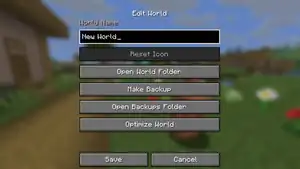
A player can click on a world to select it, and thereby access the options of it. Then, some options appear at the bottom of the screen.
There are a total of 9 operations that can be performed from the world options, some of which are contained within the "Edit World" screen.
| Location | Button | Description |
|---|---|---|
| Main Screen | Loads the selected world. A world can also be loaded by clicking on | |
| Permanently deletes the world after confirmation. | ||
| Make a restarted copy of the world. It has the same seed and settings, but without saving any changes made to the terrain. | ||
| Open a screen with more options: | ||
| Edit World Screen | Editing world name | The world name is visible on the top of the screen. A new display name for the world can be inputted.
Note that the name of the world folder does not change. |
Deletes the world's icon.png file, which allows a new icon to be taken. A new screenshot is taken to become the world's icon the next time is clicked.[verify]
| ||
Opens .minecraft/saves/<SELECTED WORLD>/. This allows quickly accessing folders like datapacks along with all the data for the world.
| ||
Makes a new .zip archive in .minecraft/backups/ with the data of the selected world stored. The file name of a backup follows this format: YYYY-MM-DD_hh-mm-ss_<World Folder Name>.zip.
Example: | ||
Opens .minecraft/backups/.
| ||
Opens a screen to upgrade the level data of the world to the latest format. Once a world is optimized, it is no longer compatible with previous level formats. There are four options:
After clicking either of the buttons, the optimization process begins. Chunks generated in 1.19 or later are skipped, as they use the current format. The rest of the chunks are reformatted. |
Bedrock Edition
The edit world screen in Bedrock Edition allows for various settings to be changed and add-ons to be enabled. Worlds that are stored locally on the device can be edited, as well as worlds in an owned Realms server. The edit world screen for local worlds uses Ore UI, while the edit world screen for Minecraft Realms uses the Classic UI, making them look vastly different while offering almost the same options. The Ore UI version of the edit world screen for Minecraft Realms can be enabled with a button at the top in Minecraft Preview.
The world options for local worlds can also be viewed and edited in the pause menu, which uses the Classic UI.
.png)
.png)
Ore UI
The edit world screen for local worlds can be opened from the "Worlds" tab in the play screen by selecting the "Edit" button on a world, or by pressing  /
/ for controllers on a selected world. The Ore UI version of the edit world screen for Minecraft Realms can be opened by the Realm owner by selecting "Edit World" on a world in the Edit Realm screen and selecting the button at the top.
The menu shows the world thumbnail with some buttons and a tab list on the left, and the world options for each selected tab on the right.
| Option | Description |
|---|---|
.png)
|
Returns to the previously opened menu screen, usually the "Worlds" tab in the play screen for local worlds, and the Edit Realm screen for Minecraft Realms. If any options have been changed, the game offers to save the changes, or discard them. |
.png) |
Opens a menu with the option to change the world thumbnail to an in-game screenshot, or reset it to the default screenshot which is taken upon world saving. Not available for worlds in Minecraft Realms. |
.png) .png)
|
Saves changes made to the world options and opens the loading world screen to join the world or Realm. |
.png)
|
Opens a menu with the options to upload the world to an owned Realm, or create a new Realms subscription. Selecting a Realms server will show a selection screen with three available world slots where the world can be stored. If a world already exists in the slot, the world will be replaced with the uploaded world.
Not available for worlds in Minecraft Realms. |
Below, there are seven sections which open the respective world options on the right: General, Advanced, Multiplayer, Cheats, Resource packs, Behavior packs, and Experiments.
When the world has been created from a Marketplace template, some options may be locked by the creator. The options can be unlocked by selecting the message at the top, but this may result in different gameplay than the creator intended for the template.
Some options and custom add-ons may permanently disable achievements for the world, which are shown with a message on the top. Enabling add-ons or experiments shows a warning message as well.
.png)
General
- World name
- Allows the name of the world to be set to a custom string from up to 30 characters.
.png)
- Game mode
- Allows the default game mode of the world to be changed. The available modes are Survival, Creative, and Adventure.
.png)
- Difficulty
- Allows the default difficulty setting to be changed. Can be set between Peaceful, Easy, Normal (default), and Hard.
.png)
- Hardcore
.png)
- Shows whether Hardcore mode is enabled or not, but can't be changed.
- File management
.png)
.png)
- The "File management" section shows three buttons related to the world files, with the world size in MB or GB below, and the date and time from the last world save.
| Option | Description |
|---|---|
.png)
|
Copies the world files and stores the new world locally with - Copy added to the name.
|
.png)
|
Opens a message with the option to delete the world. |
.png)
|
Opens the exportation settings screen with some settings and the option to export the world files. Only available on Windows devices[1][2]. See § Export world below for more information. |
| Option | Description |
|---|---|
.png)
|
Deletes all world data (except backups) and activates a new, default world in the world slot. |
.png)
|
Opens a list of local worlds. Selecting one will replace the world slot on the Realm with the world, overwriting the old world. |
.png)
|
Downloads the world and stores it locally on the device, with a name in the format [REALM NAME] - Copy.
|
Export world
- Clear player data
.png)
- Whether all player data will be erased upon world exportation.
- Export as hardcore
- Whether Hardcore will be enabled upon world exportation. If Hardcore has already been enabled for the world, this option is still available but has no effect.
- Export as template
- Whether the world will be exported as a world template with the .mctemplate file extension instead of .mcworld. World templates need to be imported from the "Create from..." screen in the play screen rather than the worlds list.
- Cancel
- Cancels exportation and returns to the edit world screen.
- Export
- Exports a copy of the world and opens the device's folders app to select a folder where the world will be stored.
.png)
Advanced
- World seed
- Shows the world seed which randomly generates the world's terrain and features, but can't be changed. There is a button on the right which copies the seed to the clipboard. The world seed is not shown on Minecraft Realms and is replaced by "0" even if the actual seed is different.
.png)
- Flat world
.png)
- Shows whether the world has been created with flat world enabled, but can't be changed. When enabled, the selected flat world preset is shown with the block layers that make up the world below.
- Show coordinates
- Controls whether to display the player's coordinates.
- Show days played
- Controls whether to display the in-game days played.
- Recipe unlocking
.png)
- Controls whether recipes in the recipe book need to be unlocked.
- Fire spreads
- Controls whether fire can spread.
- TNT explodes
- Controls whether TNT can explode.
- Mob loot
- Controls whether mobs drop items when killed.
- Natural regeneration
- Controls whether hunger can affect the player's health.
- Tile drops
- Controls whether blocks drop when they are broken.
- Skip night by sleeping
- Controls whether sleeping in a bed at night skips to morning.
- Required Sleeping Players
- How many players must be in bed to skip the night. Slider can be set between 0-100%, with steps of 1%. Defaults to 100% (All). Disabled when "Skip night by sleeping" is enabled, and setting the slider to 0% (One) always requires one player in a bed to skip the night.
.png)
- Immediate respawn
- Controls whether to skip the death screen and immediately respawn. In Hardcore mode, the game over screen will be skipped and the player will instantly enter Spectator mode upon death.
- Respawn blocks explode
- Controls whether beds and respawn anchors explode when used in the wrong dimension.
- Respawn radius
- An integer input controlling the spread distance around the world spawn where players spawn. Defaults to 10, with a maximum value of 128.
.png)
- Simulation distance
- A dropdown menu that allows the simulation distance to be changed. Can be set to 4 (default), 6, 8, 10, or 12 chunks. Some devices may limit the simulation distance option to 8 or 10 chunks, which is selected with buttons instead of a dropdown menu. This can't be changed to any other value than 4 chunks on Minecraft Realms.
.png)
.png)
- Starting map
- Shows whether the starting map option was enabled upon world creation, but can't be changed.
- Bonus chest
- Shows whether the bonus chest option was enabled upon world creation, but can't be changed.
.png)
Multiplayer
- Multiplayer Game
- Controls whether multiplayer is enabled in this world. Not available for Minecraft Realms.
Settings
The following settings are grayed out unless multiplayer is enabled.
- Player access / (PlayStation Only)™ Network friends
- Determines who can join this world. The options are Invited players, Friends (default), and Friends of friends. Not available for Minecraft Realms, instead, all players need to be invited in the "Members" tab which can be opened by pressing the "Manage members" button, located below the other options.
.png)
- Default player permissions
- Allows the default player permissions to be changed. The options are Visitor, Member (default), and Operator. In Minecraft Realms, this option can only be changed in the "Members" tab in the Manage Realm screen or the pause menu and affects the whole Realm, rather than only the world.
.png)
- Visible to LAN players
- Controls whether the world is visible to others on the same LAN network. Not available for Minecraft Realms.
- Friendly fire
- Controls whether players can damage each other.
- Locator bar
- Controls whether the locator bar is visible if multiple players are in the world.
.png)
Cheats
- Cheats
- Controls whether commands and other cheat settings are enabled.
Cheat settings
The following settings are grayed out unless cheats are enabled.
- Daylight cycle
- Allows the daylight cycle to be controlled. The options are Normal (default), Always day, and Lock time. Always day is not available on Minecraft Realms.
.png)
- Keep inventory
- Controls whether players keep their inventory after dying.
- Mob spawning
.png)
- Controls whether mobs spawn naturally.
- Mob griefing
- Controls whether mobs can move and destroy blocks.
- Entities drop loot
- Controls whether non-mob entities drop items when destroyed.
- Weather cycle
- Controls whether the weather can change between rain, snow, and thunderstorms, or is locked to the current weather.
- Command blocks
- Controls whether to enable command blocks.
- Minecraft Education features
- Controls whether to enable certain features from Minecraft Education. Not available on Minecraft Realms.
- Random tick speed
- An integer input that controls the rate at which random events occur in the world caused by random ticks. Defaults to 1, with a maximum value of 4096. Contains a reset button next to the box.
.png)
.png)
Resource packs
- Shared packs
- Controls whether local resource packs are optional (default) or forced. When turned off, players can have different resource packs enabled than the resource packs applied to the world, which players can select in the "Global Resources" tab in the settings. When turned on, players will download all enabled resource packs and global resource packs are disabled.
Active
- Local
- Lists all active local resource packs. When multiple resource packs are enabled that can conflict with each other, the highest resource pack in the list will be prioritized over other packs. Each pack can be dragged to any location in the list. A pack can be removed with the "Remove" button right next to each pack, and the description and details of the pack can be opened by selecting the pack. For Marketplace packs, there is a button to open the purchase page in the Marketplace. For all packs, there is a button to open a menu with the technical details of the pack, such as the UUID, storage location, and error logs.
- Global
- Lists all active global resource packs. The same details and links can be opened for global packs as for local packs, but they can only be enabled or disabled in the "Global Resources" tab in the main settings menu.
Available
- Owned
- A dropdown widget that lists available resource packs obtained from the Marketplace and stored locally in
 development_resource_packs. Each pack can be activated by pressing the button on the right of the pack, and more information can be opened by selecting the pack. Marketplace packs also show a button to open the purchase screen in the Marketplace. Some packs may require downloading before they can be activated. Enabling resource packs that are part of add-ons also enables the connected behavior pack if available.
- Marketplace Pass
- A dropdown widget that lists available resource packs from Marketplace Pass. They can be opened the same way as packs in the "Owned" list. If the player is not subscribed to the Marketplace Pass, a button that opens the Marketplace Pass purchase screen shows instead.
- Get more packs
- Redirects to a Marketplace page featuring new resource packs.
The "Resource packs" tab in Minecraft Realms is still under construction and resource packs need to be enabled from the Classic UI edit world screen.
.png)
Behavior packs
- Active
- A submenu that lists active behavior packs. Behavior packs can be opened the same way as resource packs, but are always connected to the world data and can't be disabled for certain players.
- Available
- A submenu that lists available behavior packs obtained from the Marketplace or stored locally in development_behavior_packs. Enabling behavior packs that are part of add-ons also enables the connected resource pack if available.
The "Behavior packs" tab in Minecraft Realms is still under construction and behavior packs need to be enabled from the Classic UI edit world screen.
.png)
Experiments
Allows the player to enable several experimental features. After saving the world with experiments enabled, the experiments can't be toggled off again.
The "Experiments" tab in Minecraft Realms is still under construction and experiments can only be enabled by uploading a world with experiments to the Realm.
Classic UI
.png)
The edit world screen in Minecraft Realms, the game settings in the pause menu, and Bedrock Editor use the Classic UI, which looks vastly different from Ore UI and offers some different options. The edit world screen for Minecraft Realms can be opened by the Realm owner by selecting "Edit World" on a world in the Edit Realm screen. The game settings in the pause menu can be opened by selecting "Settings" in the pause menu. The world options tabs are located in the "World" or "Realm" section on the left, and the add-on tabs are located in the Add-Ons tab at the bottom.
The edit project screen in Bedrock Editor only affects the world after exportation, and allows all options to be changed including normally grayed out options.
Game Settings
| Option | Description | Default |
|---|---|---|
| World Name | Allows the name of the world to be set to a custom string from up to 30 characters. | My World |
| Difficulty | Allows the default difficulty setting to be changed. Can be set between Peaceful, Easy, Normal (default), and Hard. | Normal |
| Default Game Mode[note 1] Game Mode[note 2] |
Allows the default game mode of the world to be changed. The available modes are Survival, Creative, and Adventure. | Survival |
| Personal Game Mode | Allows the personal game mode for the player to be changed, which is also affected by the /gamemode command. Available game modes are Survival, Creative, Adventure, Spectator, and Default (the player's game mode is the same as the world's default game mode). Not available for Minecraft Realms.
|
Default |
| Hardcore mode | Shows whether Hardcore mode is enabled or not, but can't be changed. | OFF |
| World Preferences | ||
| Starting Map | Shows whether the starting map option was enabled upon world creation, but can't be changed. Not available for Minecraft Realms. | OFF |
| Bonus Chest | Shows whether the bonus chest option was enabled upon world creation, but can't be changed. Not available for Minecraft Realms. | |
| Player permission when joining from invite | The default player permission when a player joins the world from an invite. Available permissions are Visitor, Member, and Operator. In Minecraft Realms, this option can be changed in the "Members" tab in the Manage Realm screen or the pause menu and affects the whole Realm, rather than only the world. | Member |
| World Type | Shows the world type of the world, which is Infinite by default. If the "Flat world" option has been enabled, the world type shows Flat. If a world has been created as an Old world before Bedrock Edition 1.18.0, this shows Old. Not available for Minecraft Realms. | Infinite |
| Seed | Shows the world seed which randomly generates the world's terrain and features, but can't be changed. Not available for Minecraft Realms. | |
| Simulation Distance | Shows the simulation distance selected for the world. This can only be changed in the edit world screen in the Play screen. Not available for Minecraft Realms. | 4 chunks |
| World Options | ||
| Friendly Fire | Controls whether players can damage each other. | ON |
| Show Coordinates | Controls whether to display the player's coordinates. | OFF |
| Locator bar | Controls whether the locator bar is visible if multiple players are in the world. | ON |
| Show Days Played | Controls whether to display the in-game days played. | OFF |
| Fire Spreads | Controls whether fire can spread. | ON |
| Recipes Unlock | Controls whether recipes in the recipe book need to be unlocked. | |
| TNT Explodes | Controls whether TNT can explode. | |
| Respawn Blocks Explode | Controls whether beds and respawn anchors explode when used in the wrong dimension. | |
| Mob Loot | Controls whether mobs drop items when killed. | |
| Natural Regeneration | Controls whether hunger can affect the player's health. | |
| Tile Drops | Controls whether blocks drop when they are broken. | |
| Beds Work | Controls whether sleeping in bed at night skips to morning. | |
| Players needed to skip night | How many players must be in bed to skip the night. | 100% |
| Immediate Respawn | Controls whether to skip the death screen and immediately respawn. | OFF |
| Respawn Radius | An integer input controlling the spread distance around the world spawn where players spawn. Defaults to 10, with a maximum value of 128. | 10 |
| Experiments | Shows which experiments are enabled for the world, but can't be changed while in the pause menu. Not available for Minecraft Realms. | OFF |
| Cheats | ||
| Activate Cheats | Controls whether commands and other cheat settings are enabled. When disabled, the following cheat settings are grayed out. | OFF |
| Education Edition | Controls whether to enable certain features from Minecraft Education. Not available for Minecraft Realms. | |
| Always Day | Controls whether the in-game time is locked to noon. Not available for Minecraft Realms. | |
| Do Daylight Cycle | Controls whether the daylight cycle is enabled, or the time is locked to the current time. | ON |
| Keep Inventory | Controls whether players keep their inventory after dying. | OFF |
| Mob Spawning | Controls whether mobs spawn naturally. | ON |
| Mob Griefing | Controls whether mobs can move and destroy blocks. | |
| Entities Drop Loot | Controls whether non-mob entities drop items when destroyed. | |
| Weather Cycle | Controls whether the weather can change between rain, snow, and thunderstorms, or is locked to the current weather. | |
| Command Blocks Enabled | Controls whether to enable command blocks. | |
| Random Tick Speed | An integer input that controls the rate at which random events occur in the world caused by random ticks. Defaults to 1, with a maximum value of 4096. Contains a reset button next to the box. | 1 |
| Download World | Downloads the world and stores it locally on the device, with a name in the format [REALM NAME] - Copy. Only available for Minecraft Realms.
|
|
| Replace World | Opens a list of local worlds. Selecting one will replace the world slot on the Realm with the world, overwriting the old world. Only available for Minecraft Realms. | |
| Reset World | Deletes all world data (except backups) and activates a new, default world in the world slot. Only available for Minecraft Realms. | |
Multiplayer
The following options are not available for Minecraft Realms.
| Option | Description | Default |
|---|---|---|
| Multiplayer Game | Shows whether multiplayer is enabled in this world, but can't be changed. | ON |
| Microsoft account Settings | Shows which type of players can join the world, which can be Invited Players Only, Friends Only, or Friends of Friends, but can't be changed. | Friends Only |
| Visible to LAN Players | Shows whether players on the same LAN network can join the world, but can't be changed. | ON |
Backups
This tab shows a list of backups for the world slot on the Realm. Minecraft Realms automatically creates a backup every few hours when players are online. Each backup shows the time it was made and its size.
Pressing a backup offers to replace all world data with the data from the backup. Pressing the download button on the right downloads the backup to the device. This will show up as [REALM NAME] [BACKUP DATE & TIME: DD-MM-YYYY HH:MM:SS] - Copy in the Worlds list.
Add-Ons
Enabling and disabling resource packs and behavior packs works exactly the same as in the Ore UI version of the edit world screen, however, the buttons are located differently. All packs are located behind collapsible section headers. The options for each pack can be viewed by selecting a pack. Press "Activate" or "Deactivate" to enable or disable packs, and press "View in Store" to open the purchase screen in the Marketplace for Marketplace packs. Activated packs can be moved in the list by selecting an arrow button on the bottom-right of a pack. For activated packs only, the technical details screen can be opened by pressing the green checkmark button on the right.
All activated and available resource packs and behavior packs can be viewed from the pause menu, but none of them can be activated or deactivated while in the world. Additionally, on Minecraft Realms, locally stored custom packs in development_resource_packs and development_behavior_packs but this can be bypassed by storing them in the regular resource packs and behavior packs directories.
History
| Java Edition | |||||||
|---|---|---|---|---|---|---|---|
| 1.9 | 15w32b | Added Edit Button. | |||||
| July 16, 2018 |  Dinnerbone mentions possible addition of optimize world screen and shows early version of it. Dinnerbone mentions possible addition of optimize world screen and shows early version of it. | ||||||
| 1.13 | pre10 | 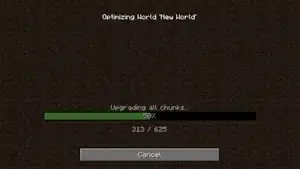 Added optimize world screen. Added optimize world screen. | |||||
| release |  Added information about upgraded, skipped and total number of chunks. Added information about upgraded, skipped and total number of chunks. | ||||||
| 1.20 | Pre-release 1 |  Changed background texture. Changed background texture. | |||||
| Bedrock Edition | |||||||
| 1.20.60 | Preview 1.20.60.23 | .png) Edit World screen has been updated to match Ore UI, available in preview only[3]. Edit World screen has been updated to match Ore UI, available in preview only[3]. | |||||
| December 28, 2024 | Edit World screen is released to the public and no longer in preview only. | ||||||
| Preview 1.21.110.20 | The Edit World screen for Minecraft Realms has been updated to match Ore UI, available in preview only. | ||||||
| Minecraft Education | |||||||
| 1.21.90 | Preview 1.21.90.1 | .png) Edit World screen has been updated to match Ore UI. Edit World screen has been updated to match Ore UI. | |||||
| Legacy Console Edition | |||||||
| Xbox 360 | Xbox One | PS3 | PS4 | PS Vita | Wii U | Switch | |
| TU0 | CU1 | 1.00 | 1.00 | 1.00 | patch 1 | 1.0.1 | Added the World Options menu. |
| TU5 | Added bonus chest option to the World Options menu. | ||||||
Gallery
Java Edition
-
 A world's edit screen in Java Edition 1.20.1.
 -
 Edit screen in Java Edition 23w13a_or_b.
Bedrock Edition
-
The "General" tab.
-
.png) The "Advanced" tab.
The "Advanced" tab. -
.png) The "Multiplayer" tab.
The "Multiplayer" tab. -
.png) The "Cheats" tab.
The "Cheats" tab. -
.png) The "Resource packs" tab.
The "Resource packs" tab. -
.png) The "Behavior packs" tab.
The "Behavior packs" tab. -
.png) The "Experiments" tab.
The "Experiments" tab. -
.png) The exportation settings menu.
The exportation settings menu. -
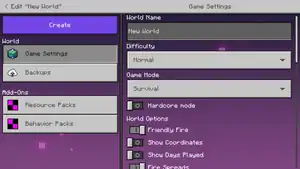 The "Game settings" tab in Minecraft Realms. Note that this screenshot is taken in the "New World" version of the edit world screen, but it looks similar in the regular edit world screen.
 -
 The "Backups" tab in Minecraft Realms.
 -
The "Game" tab in the pause menu.
-
 The "Game settings" tab in the pause menu for Minecraft Realms.
 -
.png) The "Multiplayer" tab in the pause menu.
The "Multiplayer" tab in the pause menu. -
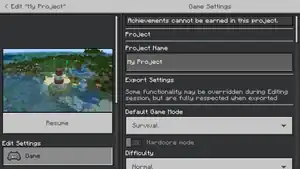 The edit project screen in Bedrock Editor.
Ore UI : Edit world realms experience (Preview Only)
-
Ore UI version of the "General" tab in Minecraft Realms.
-
.png) Ore UI version of the "Advanced" tab in Minecraft Realms.
Ore UI version of the "Advanced" tab in Minecraft Realms. -
.png) Ore UI version of the "Multiplayer" tab in Minecraft Realms.
Ore UI version of the "Multiplayer" tab in Minecraft Realms. -
.png) Ore UI version of the "Cheats" tab in Minecraft Realms.
Ore UI version of the "Cheats" tab in Minecraft Realms. -
.png) Ore UI version of the "Resource packs" tab in Minecraft Realms.
Ore UI version of the "Resource packs" tab in Minecraft Realms. -
.png) Ore UI version of the "Behavior packs" tab in Minecraft Realms.
Ore UI version of the "Behavior packs" tab in Minecraft Realms. -
.png) Ore UI version of the "Experiments" tab in Minecraft Realms.
Ore UI version of the "Experiments" tab in Minecraft Realms.
Historical screenshots
-
 The "Edit your World" screen in older versions of Pocket Edition.
 -
.jpg) The Classic UI edit world screen with Hardcore mode enabled.
The Classic UI edit world screen with Hardcore mode enabled. -
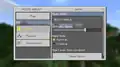 The old edit world screen for Minecraft Realms in Pocket Edition.
Issues
Issues relating to "World Options" or "Edit World Screen" are maintained on the bug tracker. Issues should be reported and viewed there.
See also
- Ore UI, the Bedrock Edition UI refresh
References
- ↑ MCPE-174595 — Missing Export and Import buttons on mobile devices — resolved as "Works As Intended".
- ↑ MCPE-180257 — Missing Export and Import buttons on Chromebooks — resolved as "Works As Intended".
- ↑ "Well, actually, that's not all, my dears. In today's preview the new Edit World screen is rolling out too! Check it out, and use the feedback button on the screen to tell us what you think." – @Volgar on X (formerly Twitter), December 13, 2023
| |||||||||||||||||||||||
| |||||||||||||||||||||||