World

A world or level is an individual Minecraft "universe" which encompasses all blocks and entities in each dimension. Worlds can be accessed and edited through the world selection menu from the main menu and can be created with the "Create New World" button.
Description
Worlds are split into three dimensions, which are in turn composed of blocks of various sizes, usually either cubic or composed of one or more cuboids, or of flat plane images, all of which are arranged in a Euclidean grid. Fluids, entities and particles also exist within these worlds, and certain locations of the world can possess biomes and different levels of light. Blocks and entities can possess other attributes such as items, effects and, by extension, enchantments. The terrain of world is procedurally generated before players can modify blocks and entities within. Various structures and features can also generate inside worlds, sometimes containing chests with loot inside.
A player can manage settings for gameplay and world generation before world creation in the Create New World screen, and after creation through game rules and the edit world screen.[BE only] Worlds can be generated with several world types, and there are generation options for the world seed and the bonus chest. From the world options, the player can manage the world file, including duplicating, deleting, exporting (to transfer the world or upload to a server),[BE only] and uploading to Realms. Worlds can be modified using resource packs, data packs,[JE only] behavior packs,[BE only] and experiments. World content can be created efficiently using projects in Bedrock Editor.
Storage
Java Edition
Each world is saved in its own separate folder in the .minecraft/saves folder. Files relating to chunks in the Overworld are stored in the base world save folder, Nether files are stored in the DIM-1 subfolder, and End files are stored in DIM1. Each dimension has its own data, poi, and region folders that is stored in its directory.
Bedrock Edition
Each world is saved in its own separate folder in the com.mojang/minecraftWorlds folder. This world folder can be compressed into a .zip file, which can be changed into a .mcworld file to tranfer the world. Exporting worlds on Windows devices automatically zips the world in a .mcworld file, which can be imported on non-console devices by opening the file with the Minecraft app, or using the import world feature in the play screen.
Directory structure
 internal world ID
- behavior_packs: Contains world behavior packs.
- db
 000005.ldb: Uneditable binary file.
- 000006.log: Uneditable log file.
- region ID.dat[note 1]
- CURRENT.dat: Contains file name of the "MANIFEST-<ID>" file.
- LOCK.dat[more information needed]
- MANIFEST-<ID>.dat
- level.dat
- level.dat_old: File that can be used as a backup for the other DAT file.
- levelname.txt: Contains the name of the world.
- resource_packs: Contains world resource packs.
- world_behavior_pack_history.json: Contains the UUID of all behavior packs that have ever been enabled for the world.
- world_behavior_packs.json: Determines which behavior packs stored in development_behavior_packs are enabled for the world.
- world_icon.jpeg: The thumbnail of the world, which can be changed to an in-game screenshot in the edit world screen. Must be a 800x450 pixels JPEG file.
- world_resource_pack_history.json: Contains the UUID of all resource packs that have ever been enabled for the world.
- world_resource_packs.json: Determines which resource packs stored in development_resource_packs are enabled for the world.
World template
A world file can be converted to a world template to easily modify its contents, such as add-ons and additional languages for the world name, in order to let a player create a new world with data stored in the template.[1] A world template uses the same directory structure as regular world files, with a few additional JSON files.
- internal world ID
- manifest.json: Mandatory file, must specify
"world_template"type. Contains the name and ID of the world. If the name and description are set topack.nameandpack.description, these will be assigned the texts specified in the localization files. Optionally,"allow_random_seed" : truecan be added to the header to override seeds stored in the world data and generate a new world with a random seed. - texts
- languages.json: Specifies all languages used.
- languagecode_COUNTRYCODE.lang: A language file for localization. Multiple language files can be used.
Localization
The in-game name and description of the world template can be changed for any language. The LANG file should containpack.name= followed by the name of the template, and pack.description= followed by the description. languages.json should contain an array of all language codes used..png)
Importing
A finished world template can be zipped and packaged as a .mctemplate file. Opening this file will automatically import it as a world template, stored in com.mojang/world_templates. World templates can also be imported on Windows in the "Create from..." screen opened after pressing the "Create new world" button in the play screen.
All imported world templates are shown in the "Create from" screen. Selecting a world template will show the description, and opening it will open the Create New World screen with all data from the world template.
World templates can also be purchased from the Marketplace. A list of Marketplace and Marketplace Pass world templates is shown in the "Create from..." screen, which can create a world similar to custom world templates.
History
Legacy Console Edition
| Legacy Console Edition | |||||||
|---|---|---|---|---|---|---|---|
| Xbox 360 | Xbox One | PS3 | PS4 | PS Vita | Wii U | Switch | |
| TU0 | CU1 | 1.00 | 1.00 | 1.00 | Patch 1 | 1.0.1 | Added worlds. Worlds can be created, saved, and deleted. |
| TU3 | Added a save file cache to improve the speed of displaying the saves list. | ||||||
| TU5 | Added the ability to rename an existing world. | ||||||
| Added a confirmation dialog on the player choosing to exit without saving. | |||||||
Issues
Issues relating to "World" are maintained on the bug tracker. Issues should be reported and viewed there.
Gallery
Java Edition
-
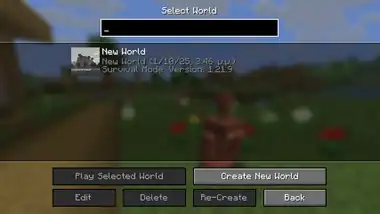 The world selection screen in Java Edition.
 -
 The world creation screen in Java Edition.
Bedrock Edition
-
.png) The "Worlds" tab of the "Play" menu in Bedrock Edition.
The "Worlds" tab of the "Play" menu in Bedrock Edition. -
.png) The "Create New World" screen in Bedrock Edition.
The "Create New World" screen in Bedrock Edition.
See also
References
- ↑ "Create a World Template from an Exported World" – Microsoft Learn, December 5, 2023.
| Geography | |||||||||
|---|---|---|---|---|---|---|---|---|---|
| Sky and fog | |||||||||
| Weather |
| ||||||||
| Dimensions | |||||||||
| World types |
| ||||||||
| Player constructions |
| ||||||||
| Matter | |||||||||
| Sound | |||||||||
| Joke |
| ||||||||
| Bugs |
| ||||||||
| Removed |
| ||||||||


.png)


