Screenshot
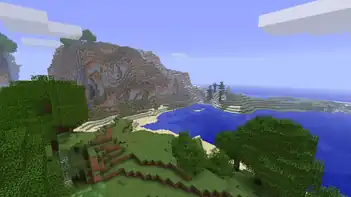
Screenshots are images of the player camera view taken while playing the game.
Screenshots can be taken when the player is in the first person or third person camera view.
Java Edition
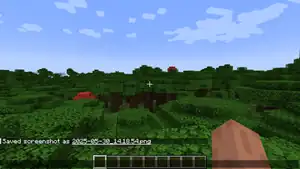
In Java Edition, screenshots can be taken in-game by pressing the default F2 key,[1] or the Fn + F2 for macOS, some laptops and other keyboards. Screenshots are automatically saved in the "screenshots" directory within the .minecraft directory.
Like other control keys in Java Edition, the screenshot key can be customized by navigating through "Options..." → "Controls..." → "Key Binds...", and select the key binding of "Take a screenshot" under the "Miscellaneous" category.
Storage
Screenshots are saved as PNG files in the .minecraft/screenshots directory, with the filename format based on the current date and time: YYYY-MM-DD_HH.MM.SS.png. For example, a screenshot taken on November 5, 2025, at 10:47:23 AM gets named 2025-11-05_10.47.23.png. If multiple screenshots are saved within the same second, a revision number is appended to the file name (e.g., 2025-11-05_10.47.23_1.png is the second screenshot taken at that time).
On Windows, the screenshot directory can be accessed by pressing ⊞ Win + R and typing %AppData%\.minecraft\screenshots. On Mac, screenshots are stored in ~/Library/Application Support/minecraft/screenshots, and on Linux, they are stored in ~/.minecraft/screenshots.
The screenshots directory can also be accessed by going to "Resource Packs" in the settings menu, clicking on "Open resource pack folder", and going up one level.
Screenshot options
It is possible to change what features are included in the screenshot by pressing control keys. By default, the screenshots look exactly like the screen during regular gameplay.
| Control Key | Function |
|---|---|
| F1 | Hides heads-up display elements such as the health bar, hunger bar, experience bar, and any held items. In multiplayer it also hides the server chat and player nametags. |
| F3 | Displays the debug screen. This shows coordinates, entity count, and other various things. Press F3 + 1, F3 + 2 or F3 + 3 to pull up debug screen with debugging charts. |
Bedrock Edition
.png)
.png)
.png)
In Bedrock Edition, screenshots can be taken in-game by pressing the screenshot button ( ) in the pause menu. Like Java Edition, screenshots can also be taken by pressing the default F2 key for computers, or the Fn + F2 keys for some laptops and other keyboards; however, it can only be taken in gameplay (while playing in a world), not while in a menu screen. Screenshots always hide the HUD, but name tags from other entities are still shown.
The screenshot button is not available on the pause menu for players who are not signed in to Microsoft account.
Usage
.png)
Once a screenshot is taken, they can be managed on the "Screenshot Gallery" under the "Profile screen", which showcase all of the screenshots the player has taken in the game.
In the gallery, players can use their saved screenshots to customize certain elements of the game, such as setting their saved world's thumbnail, regardless if the screenshot was not originally from that world. They can also use it to set their profile's featured banner and showcase gallery, which are shown to their friends in the profile screen.
In Realms, players can share their screenshots to Realms Stories.[1]
Storage
Screenshots are saved in the com.mojang/Screenshots/XUID directory, the XUID being the ID of the player's Xbox account. Each screenshot consists of 2-3 files:
UUID.jpeg: The image itself, in JPEG format.UUID.json: The screenshot metadata, in JSON format.UUID.mc: 32 byte long file of unknown format and purpose. The game does not appear to be using these files. They are only known to be created on the Android platform, and known not to be created on the Windows platform.
The UUID is a string encoded, version 4, RFC 4122 variant UUID generated for each screenshot.
The metadata JSON file has the following structure:
- [NBT Compound / JSON Object]: The root object
- [Double] captureTime: Time the screenshot was taken at, as seconds since the UNIX epoch
If there are any YYYY-MM-DD_HH.mm.ss[sequence].jpeg files, possibly with corresponding YYYY-MM-DD_HH.mm.ss[sequence].mc files, which was the old naming format used in previous versions, the game renames them to the new format, and creates the metadata file based on the timestamp included as part of the old name, assuming the current system timezone.
Using Xbox alternatives
On Windows, players can screenshot their game by pressing the ⊞ Win + G, opening Xbox Game Bar overlay, and clicking the camera button to take a screenshot under the Capture window.[1] A notification then appears, and when clicked, it opens up the Gallery window, where you can see the screenshot and the location it was saved. The default screenshot directory is C:\Users\username\Videos\Captures. Players can also take screenshots quickly by pressing the ⊞ Win + Alt + PrtScn keys.
On an Xbox console, press the Xbox button, and press the  button to take a screenshot, or the
  button to take a video clip. You can upload your screenshot through the Captures app, and download it by visiting your profile page on the Xbox website under the Captures tab, or through the Xbox mobile app.
Minecraft Education
In Minecraft Education, players can take screenshots as a gameplay feature by using the camera item.[2] When the camera is selected in the player hotbar, players can take a first person view screenshot by right-clicking it.
Camera can also be placed, creating a camera entity that tracks the user, and take pictures from the camera's perspective. Photos that are taken with the camera appear in the portfolio.
Close-up snapshots of an item on the ground can be taken by holding the ⇧ Shift key while right-clicking.
Screenshots are shown as photos in chronological order on the portfolio. Players can type a short caption text under the picture of the photo. These photos then can be exported in JPEG inside a ZIP file in the specified directory by clicking the "Export Portfolio" button.[2]
Screenshots can also be inserted into book and quill, and then exported as a PDF, along with the written text, title and author shown in the filename.[2]
Screenshots taken with the camera are stored in com.mojang/Screenshots.
Videos
History

| Java Edition Alpha | |||||||
|---|---|---|---|---|---|---|---|
| v1.2.0 | ? | The screenshot function was implemented. Originally F1 had to be held down when taking screenshots. | |||||
| Java Edition Beta | |||||||
| 1.2 | Screenshots can be taken using the F2 key without having to first hold down the F1 key. | ||||||
| 1.2_02 | Pressing ⇧ Shift + F2 would call an unfinished experimental screenshot function that attempted to generate a huge 645 megapixel TGA image with a resolution of 36,450×17,700 pixels.[3] Pressing this key combination would cause the client to either freeze for a while, displaying several clipped tiles of the current view, or crash, depending on the amount of available RAM. During this time, it would attempt to generate a file of 1.8 GB in size that may end up corrupt. | ||||||
| 1.5 | The above experimental screenshot feature was removed. | ||||||
| Java Edition | |||||||
| 1.6.1 | ? | The ability to choose a custom path to save the Minecraft data folder was added. | |||||
| Bedrock Edition | |||||||
| 1.21.30 | Preview 1.21.30.22 | .png) Added a button to the pause menu that takes a screenshot. Added a button to the pause menu that takes a screenshot.Screenshots consist of two files: an image named YYYY-MM-DD_HH.mm.ss[sequence].jpeg and a file of unknown purpose named YYYY-MM-DD_HH.mm.ss[sequence].mc. The sequence is an integer zero-padded to two digits starting at 01, which is incremented every time a screenshot is taken and resets when the game starts. | |||||
| ? | The image file is now named UUID.jpeg. The file of unknown purpose is now named UUID.mc and is no longer created on the Windows platform. A third metadata file is added, named UUID.json. | ||||||
Issues
Issues relating to "Screenshot" are maintained on the bug tracker. Issues should be reported and viewed there.
Gallery
Screenshots
-
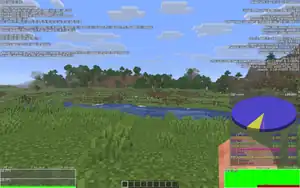 A screenshot taken with debug screen turned on.
 -
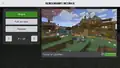 A screen which shows the screenshot details, and lets players share, manage, or view the screenshot in full screen.
 -
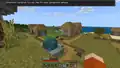 Pop-up that appears after taking a screenshot in Bedrock Edition.
 -
 Pop-up that appears after taking a screenshot in Bedrock Edition when the gallery has 95 to 99 screenshots.
 -
 Pop-up that appears after taking a screenshot in Bedrock Edition when the gallery has 100 screenshots.
 -
 Pop-up that appears after the first attempt to take a screenshot in Bedrock Edition when the gallery has 100 screenshots and a screenshot can't be taken.
 -
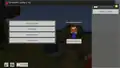 Pop-up that appears after subsequent attempts to take a screenshot in Bedrock Edition when the gallery has 100 screenshots and a screenshot can't be taken.
Mojang images
-
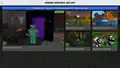 Screenshots taken by the player.
 -
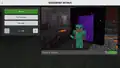 A screenshot of Sunny after entering the Nether.
 -
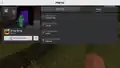 The Nether image with several statistics.
 -
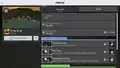 A player's profile.
 -
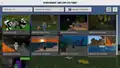 The screenshot gallery.
See also
- Ore UI, the Bedrock Edition UI refresh.
References
- ↑ a b c "Screenshotting Guide" by Tom Stone – Minecraft.net, February 7, 2019.
- ↑ a b c "Assessment Tools (Cameras, Portfolio, Book & Quill)" by Penny – Minecraft Education Support.
- ↑ "I just realized shift+F2 will generate an almost 2 gb large screenshot in 1.2_02." – @notch (Markus Persson) on X (formerly Twitter), January 21, 2011
| |||||||||||||||||||||||||||||||||
| |||||||||||||||||||||||||||||||||
| |||||||||||||||||||||||||||||||||




.png)


| Editions |
| ||||||
|---|---|---|---|---|---|---|---|
| Development |
| ||||||
| Technical |
| ||||||
| Multiplayer | |||||||
| Exclusive features |
| ||||||
| Removed | |||||||







.png)


.png)