How to Play


In Bedrock Edition, How to Play is a built-in guide designed to help new players to Minecraft. It tells the player how the main aspects of the game work, some controls, and some tips to get started. The guide is located in the Settings screen, accessible from the title screen or the pause menu. A list of topic links appear on the left, with content on the right. These sections are reproduced below.
At the bottom of the sections is a button leading to the Encyclopedia. The Encyclopedia describes more specific features in the game in detail. Some tabs in the Encyclopedia can be opened from "?" buttons in some GUIs, like the inventory and the cartography table.
The Encyclopedia and the How to Play guide is sometimes missing information or outdated.
The content of this article reproduces the game's How to Play guide and Encyclopedia in its entirety, with some reformatting and internal linking as needed for optimal presentation as a Wiki page.
The How to Play guide and the Encyclopedia describe some controls. The controls differ on some devices, and the contents of the guide change with it. In this article, the default controls for Keyboard & Mouse are shown.
The table of contents includes all of the topics in the game's guide, starting with "Moving around".
Getting started
Moving around
Welcome to the Overworld, a blocky world full of adventure and possibility!
| Displayed in keyboard controls | Displayed in touch controls | Displayed in gamepad controls |
|---|---|---|
| Look around with the mouse.
Move around the world using W A S D. Press SPACE to jump. |
Touch and drag along the screen to look around.
Move around the world using Press |
Look around with  . .
Move around the world using Press |


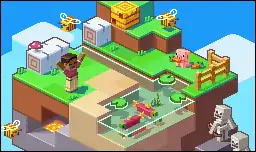
Gathering resources
The world is full of resources, including building blocks, crafting materials, and food.
You can break blocks with your bare hands to gather resources like dirt and wood. Aim at a block, then click and hold 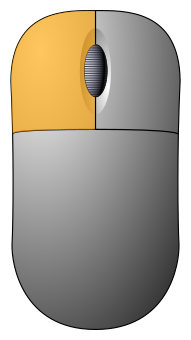 until it breaks and the resources drop.
Pick up any dropped resources by walking over the floating icons.
Selecting items
Resources you pick up will appear in your hotbar, which you'll find at the bottom of the screen.
To hold an item in your hand, scroll the mouse wheel to select the item. You can also use a number key: 1 is the first hotbar slot and 9 is the last.
Some items, like buckets, fishing rods, and bows can be used by tapping the build/use button 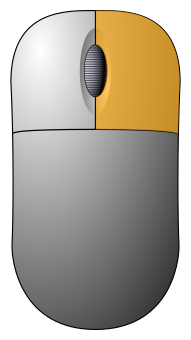 .
.
1. Hotbar

Placing blocks
Any blocks you've picked up can be placed back into the world. This way you can build a cozy shelter or anything else you can imagine!
Choose a block in your hotbar, then press to place it.
Don't worry if you placed something in the wrong spot - simply break it again, then pick it back up!
Inventory

1. Inventory
Your hotbar will fill up as you gather more resources. Press E to access your inventory, where you'll have more space for everything you've collected.
2. Hotbar
Want to move something between your hotbar and your inventory? Open your inventory, click the item of your choice, then drag it to the empty item slot you'd like to move it to.
Preparing for the first night
Your first craft

1. Crafting grid
Many blocks, like wood, can be turned into useful items by crafting. To do this, you'll find a simple crafting grid on the right-hand side of the inventory screen.
For example, put a single wood log anywhere on the crafting grid, and several planks will appear in the output slot.
Simply, drag your shiny new planks to your hotbar. Now you're ready to place them into the world!
2. Crafting recipe
Some items require you to place your crafting ingredients in a certain shape - also called a recipe.
Try placing two planks above each other to create some sticks. Useful for all sorts of things!
Recipe Book
Don't worry, you don't need to remember every crafting recipe by heart. The recipe book in your inventory keeps track of blocks and items you can craft - simply click a recipe to see what you need to craft it.
Once you've gathered the required crafting ingredients, click the recipe once more, then move it from the output slot to your hotbar or inventory.
The Crafting Table

Ready to take your crafting to the next level? Place four planks in a square in your crafting grid, and you'll get a crafting table 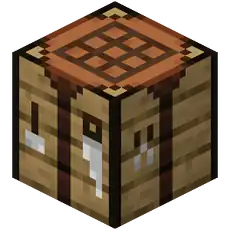 - a whole new way to craft.
Place your crafting table in the world, then right-click it to open it. The larger crafting grid will let you make bigger and better things, including tools, beds, and doors.
Crafting a Tool
Tools will help you get things done faster. Some, like the pickaxe  , let you mine stone and various ores. Others, like the sword
  , help you keep enemies at bay.
To craft a tool, open up your crafting table by walking up to it and right-clicking it. You can craft a basic version of most tools using two sticks and a few planks - your recipe book will tell you how!
Mining
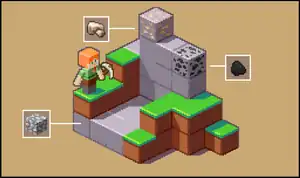
Not all crafting materials are on the surface - some may require you to dig underground or into a mountain.
A pickaxe helps you uncover all sorts of materials, such as stone, coal, iron, and precious ore - though you may need extra sturdy tools for some rarer materials!
Some raw metals will need to be smelted using a furnace _BE2.png) . Place a fuel like coal or wood logs in the fuel slot, then add raw ore to smelt it into something useful.
. Place a fuel like coal or wood logs in the fuel slot, then add raw ore to smelt it into something useful.
Suviving the first Night
Nightfall
When the sun starts to set, it's time to get ready.
At night, the overworld is home to zombies, spiders, skeletons, and other dangerous creatures we call hostile monsters.
Crafting some torches can help you see in the dark, while also keeping mobs from spawning to close.
While holding a torch, place it into the world by right-clicking a nearby free surface.
Building a Shelter
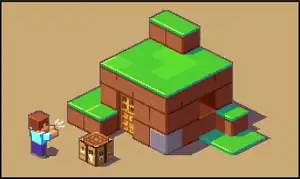
While danger comes lurking, a sturdy shelter can protect you from the threats outside.
Building a shelter is critical to surviving your first night, and it doesn't have to be hard.
You can build one with anything from dirt to stone, or even close up a cave for a makeshift lodging!
Death and Respawn
Enemies appear every night, and even the best of us can be caught off guard. If your health bar  runs out, you'll die - and then respawn right where you started.
You have unlimited lives, but you drop all items in your inventory when you die. If you're quick enough, you can pick up your items back up right where you dropped them.
Getting settled
Food
You'll slowly get hungry during your adventures - fortunately the Overworld is full of food! You can gather apples from trees, meat from animals, or why not grow your own crops using a hoe?
To eat a food, select it in your hotbar, then click and hold the right mouse button. Keep the hunger bar  full to regain health when you take damage.
Some raw foods are better when cooked first on a campfire or in a furnace - your tummy will thank you!
Beds
A soft bed lets you sleep through the night. You'll need wool to craft one, as well as a safe spot to place it.
Sleeping in a bed will also set your spawn point, meaning that if you die, you'll reappear right back home!
You can only fall asleep when it's cozy, like when it's nighttime or during a thunderstorm.
Improved Tools
Use your tools a lot and they'll eventually break. As you gather new materials, such as stone, you'll be able to craft better tools.
Tools of higher tier are more durable, more efficient, and able to gather more valuable resources. Go out into the world and find out for yourself!
Playing Together
Minecraft is a multiplayer game by default.
Online multiplayer
Every new world you create starts with multiplayer enabled by default. If you want to make it private, go to World Settings to turn off multiplayer.
Joining an Online Game
To play with others, go to the Friends tab to see all available Realms, Friends, and LAN games. Just select any game to join it.
When you start or join an online game, your friends can see this in their Friends tab. If they join, it'll be visible for their friends as well.
You need to be signed in to a Microsoft account with an active internet connection to play multiplayer.
Realms - The best way to play together
It's easy to play with friends using Realms.
You and up to 10 friends get 24/7 access to a world that's allways online. Explore, get creative, or try curated content from Marketplace.
All you need is a paid Realms subscription. Why not try a free 30-day trial?
Try Realms
This button takes the player to the Subscriptions tab in the Settings.
Player Permissions
You decide what people can do in your world by changing player permissions.
Open the game menu to see a list of players currently in your world, then select the permissions icon to adjust that player's permissions.
Encyclopedia
History
External links
| Editions |
| ||||||
|---|---|---|---|---|---|---|---|
| Development |
| ||||||
| Technical |
| ||||||
| Multiplayer | |||||||
| Exclusive features |
| ||||||
| Removed | |||||||









.png)


.png)
| |||||||||||||||||||
| |||||||||||||||||||


