Java Developer Tools


Reason: Too much focus on the third party video; all info from that video is now accessible without mods and is already described in the respective articles.
Please adddelete=1 to this template once all criteria have been met.Java Developer Tools are tools used by Mojang Developers to develop new features and debug glitches. The existence of these developer tools was revealed to the public after Minecraft modder and Youtuber EightSidedSquare published a video titled "What Minecraft Looks Like for a Mojang Dev", which showcases most of the developer tools hidden from the general public. The developer tools shown in the video can be enabled and accessed via a mod made by Eight himself.
Following the release of Eight's video, game tests and the /test command were released to the public in 25w03a alongside a few extra blocks to make its functionality more accessible to those who are unfamiliar with its functionality. Additionally, 25w31a introduced a rework for the debug screen and a new menu similar to the one added in Eight's mod (accessible by using F3 + F5) that brings about the inclusion of several previously inaccessible "developer" features and renderers into vanilla Minecraft without having to use mods to access or properly render them.
Features
In the video, EightSidedSquare categorizes the developer tools into the following categories:
- Commands
- Gametesting[1] (Referred to as "Unit testing" in the video)
- F3 Key Combos (aka debug hotkeys)
- Debug Renderers
Although not showcased in said video, it is briefly mentioned that within a developer environment, the game tends to debug more information than usual, potentially for rigorous, advanced debugging that vanilla logs wouldn't be able to achieve.
Commands
Singleplayer/Multiplayer commands
/debugmobspawning- This command can be used to trigger the events which cause mobs to spawn automatically. The mobs will only spawn if all players are at a certain distance away from where the command is executed (this can be done using a command block).[2]
- Syntax:
/debugmobspawning <spawn_group> <destination> /debugpath- Attempting to run the command
/execute as <target> run debugpath <destination>returns the message "Made path" in the chat. The results of the command can be seen using the pathfinding debug renderer.[3] - Syntax:
/debugpath <destination> /serverpack- Running this command allows the player to either push (enable) or pop (disable) a server resource pack from a given url.
- Syntax:
/serverpack <pop/push> <url> [<uuid>] /spawn_armor_trims- Running this command spawns armor stands with every single armor trim combination. There are also armor stands with wolf armor, but the armor doesn't render as wolf armor only works on wolves, not players or armor stands.
- Syntax:
/spawn_armor_trims <pattern/*_lag_my_game> /raid- Running this command allows the player to instantly start/stop a raid and use many other debugging functions.
- Syntax:
/raid <start/stop/check/sound/spawnleader/setomen/glow> <omenlvl/type/level> /test- Used for testing game interactions to ensure proper functionality when a feature or mechanic is added or updated.
- This command was added to vanilla Minecraft in 25w03a alongside a few new blocks to aid modders and mapmakers.
- The export subcommands are still limited to developers.
/warden_spawn_tracker- Running this command changes the warning level of a sculk shrieker. One can either clear or set the value of their warning level.
- This command was already accessible to the general public from Deep Dark Experimental Snapshot 1 to 22w11a.
- Syntax:
/warden_spawn_tracker <set/clear> <warning_level>
Server-Exclusive Commands
/debugconfig- A command used for debug configurations, only visible on servers.[more information needed]
- Syntax:
/debugconfig <config/unconfig> <target>
Disabled Commands
/chase[4]- Allows the player to sync two or more clients from the same or different devices. Movements on the main client will be mimiced on the other connected clients.[5]
- Syntax:
/chase <follow/lead/stop> [<host>/<bind_address>]
Debug Hotkeys
Dev Tools Unlocker
These debug hotkeys are accessible via the F3 key followed by the appropriate arbitrary letter key, as for all debug hotkeys. The following lists the debug hotkeys accessible in the unmodified version of "Dev Tools Unlocker", the mod used by Eight to access the developer tools. As of 25w32a, the "SectionPath", "SectionVisibility" and "Frustum culling octree" are accessible in the reworked debug screen accessed by using F3 + F5.
- F3 + E
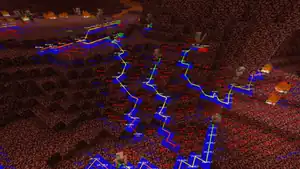
- Shows the "SectionPath", which renders the middles of chunk sections with red outlines near the player. The chunk section borders get more green the farther away the player is, and from extremely far distances, they become blue. The addition of the customizable debug screen in Java Edition 25w31a lead to the introduction of this debug renderer into the vanilla game under the internal name "chunk_section_paths". The renderer seems to be modified to automatically exclude empty chunk sections (where air solely comprises said chunk sections), potentially to reduce eye strain or lag.[needs testing]
- F3 + L
- Toggles the "SmartCull" that culls individual chunk sections (16x16x16 areas). This gets disabled as well when inside a block in spectator game mode or using F3 + U.
- F3 + U
- Pressing this keybind locks the frustum used for culling in place and makes it visible, shifting while pressing F3 + U turns this off. The frustum adjusts itself when applicable depending on the players FOV.
- F3 + V
- Pressing this keybind enables "SectionVisibility" aka the "Section Occlusion Graph", this shows how sections are visible from others. This is used for SmartCull. The addition of the customizable debug screen in Java Edition 25w31a lead to the introduction of this debug renderer into the vanilla game under the internal name "chunk_section_visibility".
- F3 + W
- Supposedly enables a wireframe but is non-functional as of 1.21.1.[6]
Miscellaneous
These debug hotkeys are unavailable in Dev Tools Unlocker, and are currently not accessible in any similar mods.
- F3 + O
- Shows the "Frustum culling Octree", a fast way for the game to check if a section is in your frustum. The number in every section shows the sections index in the octree. The color stands for the size of the node with it being more transparent if the visibility check can be skipped, because the parent is fully in the frustum. The addition of the customizable debug screen in Java Edition 25w31a lead to the introduction of this debug renderer into the vanilla game under the internal name "chunk_section_octree".
- F3 + F
- Toggles the rendering of fog.[more information needed]
Debug Renderers
_JE1_BE1.png)
Debug renderers are similar to debug hotkeys, but aren't assigned a unique hotkey combo and are generally more advanced and complex than vanilla renderers. They can be toggled using a custom menu, accessible by using F3 + F6, where they can be toggled anytime by the player.
- Water
- Indicates the fluid level of the water from an integer number ranging from eight (water source) to one (the farthest point that flowing water can flow before stopping).
- Neighbor Update
- Displays the neighbor updates that occur around any given block, indicated by white, shrinking cubic outlines with an accompanying number representing the number of block updates in that specific coordinate, that persist for 10 seconds until ultimately disappearing. Generally, a given block will send six neighbor updates, one for each side that has an accompanying block, but redstone (prior to the Redstone Experiments) sends an unusual number of neighbor updates when placed and then broken. The extra neighbor updates are the "fault" that gives rise to quasi-connectivity, a notable "bug", turned into a feature, utilized by redstoners in the redstone community.
- Heightmap
- Renders the highest point from a specified heightmap. Each point is represented with a shadow-less cuboid, where each color represents a distinct heightmap. If two heightmap cuboids are at the same coordinate, one will be situated on top of the other, generally dark teal over green.
- Dark Teal
- Represents the highest point of the "motion-blocking" heightmap, which accounts for any blocks with a solid hitbox.
- Green
- Represents the highest point of the "world surface" heightmap, which includes all blocks from the mothion-blocking heightmap and non-solid blocks such as grass and flowers.
- Dark Blue
- Represents the highest point of the "ocean floor" heightmap, which is generally the bottom of the sea floor.
- Dark Cyan
- Variation of the "motion-blocking" heightmap, which involves the exclusion of leave blocks.
- Brain / POI / Village
- Renders the "brains", paths and POIs (points of interest) of most mobs added following the Village & Pillage update. This renderer is actually three distinct debug renderers compiled into one, as suggested in the renderer's name.
- Bee
- Renders the goals of bees like with brains, and assigns each bee a unique, randomly generated name. When a bee seeks for a flower to pollenate, that flower is highlighted with a yellow transparent cube with the name of said bee attached to it, and beehives list the names of bees that are expected to return. Names are unique and randomly constructed using a prefix and a suffix based on their ID.
- Collision
- Outlines the collision boxes of surrounding nearby blocks, which differs from the block selection outline generally seen in-game. All blocks six blocks away from the player in all directions in a square are rendered. The collision boxes of many blocks are composed of voxels, which can lead to quirky visualizations of certain blocks' collisions due to how the voxel are generated. This renderer also reveals that collision boxes are relative. For example, scaffolding has no collisions when the player's feet are below the uppermost surface of the scaffolding, but gains its collisions when at the same level as the top of the scaffolding. Additionally, scaffolding also loses its collisions relative to the player when they are sneaking, causing them to climb down when inside one. A similar phenomenon occurs with powder snow when the player is wearing leather boots.
- Pathfinding
- Renders the pathfinding of mobs similar to the villager's pathfinding in the brain / POI / village debug renderer.
- Sky Light
- Displays the sky light level at a given location or chunk section. Light levels for individual blocks are designated with a number ranging from 0 to 15, and the enlarged numbers in red indicate that a given chunk contains blocks, contains light data and contains no light data or blocks for the numbers 0, 1 and 2 respectively.
- Game Event
- Village Sections
- Breeze
- Raid Center
- Goal
- Light
- Renders colored cuboids for sky light's chunk numbers, with 0 being yellow, 1 being brown and 2 being empty.
- Supporting Block
- Chunk Loading
- Structure
- Would Outline
- World Gen Attempt
Test Worlds
The "Create Test World" button on the title screen can be used to generate a superflat world that is designed to be used for testing.[more information needed] The world is set to allow commands and uses Creative as the default gamemode. It also disables the generation of structures. Test worlds are currently unavailable in Dev Tools Unlocker.
- Superflat Preset
minecraft:bedrock,3*minecraft:stone,116*minecraft:sandstone;minecraft:desert
Game Rules
When creating test worlds, some game rules uses different values as the default setting.
- doDaylightCycle
false- doMobSpawning
false- doWeatherCycle
false
Videos
In the video below, EightSidedSquare goes through most of the developer tools not accessible in vanilla Minecraft.
The video below by Henrik Kniberg, briefly mentioned in Eight's video, explains the integration testing system in Minecraft.
Trivia
- Despite not being an actual developer tool, EightSidedSquare added the ability to recolor any block while holding any dye when enabling the "World Gen Attempt" debug renderer.
- Bedrock Edition also has hidden developer features hidden from the general public, including Java Edition's pathfinding renderer and a plethora of hidden developer commands. (The original article regarding Bedrock's developer tools can be found here)
Gallery

References
- ↑ "Game tests, not unit tests - these are way too interconnected to be considered units. Good work piecing stuff together!
Your test failed because you tested for the powder snow immediately, and it doesn't appear until the game has actually ticked. Also, seeing game tests written with those mappings is extremely cursed 😄" – @slicedlime in the YouTube comments. - ↑ "Minecraft (Java Edition): How to use the /debugmobspawning command."
- ↑ "Minecraft (Java Edition): How to use the /debugpath command."
- ↑ "You missed one of the more interesting developer commands: /chase. It allows you to sync two or more clients from the same or different machines and when you move on the "lead" client the "following" clients will move the same way. It was added in 1.18 to help test worldgen changes." – @apollo4950 in the YouTube comments.
- ↑ "Minecraft (Java Edition): How to use the /chase command."
- ↑ " 9:27 This is not a discontinued feature. It's simply not shipped.
They use ProGuard, which will strip out unused code. That code is probably controlled by a value in the constants file.
ProGuard will see that this code can never run since nothing can change that variable (except someone modifying the code), so it removes it." – @fx-modding in the YouTube comments.
| |||||||||||||||||||||||||||||||||
| |||||||||||||||||||||||||||||||||
| |||||||||||||||||||||||||||||||||





.png)


