Create New World
The Create New World screen is a menu screen that allows the player to create a new world.
Java Edition
Respective options for world creation are organized into three different tabs: "Game", "World", and "More".
Game

- World Name
- Allows the name of the world to be set to a custom string. This name correlates to the folder in .minecraft/saves where the world save can be found. The default name entered into this text box is "New World".
- Game Mode
- Allows the default game mode of the world to be changed. Clicking the button cycles through to the next game mode. The available game modes are Survival, Hardcore, and Creative. The default selection is Survival.
- Difficulty
- Allows the default difficulty setting to be changed. Clicking the button cycles through to the next difficulty. There are four options available; in order, Peaceful, Easy, Normal, and Hard. The default difficulty setting is Normal.
- Allow Commands (OFF)
- Controls whether or not certain commands and debug functions are able to be used. Clicking the button toggles the option on and off.
World
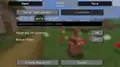
- World Type
- Controls the world type. Clicking the button cycles through the available world types, which are Default, Superflat, Large Biomes, AMPLIFIED, Single Biome, and, when Alt is held down, Debug Mode. Selecting Superflat or Single Biome enables the "Customize" button. With a world type of Superflat, the Customize button options the "Superflat Customization" menu is shown; with Single Biome, the button brings you to a list of selectable biomes.
- Seed
- Allows the world seed to be changed. Any string of characters can be placed here.
- Generate Structures (ON)
- Controls whether or not structures should generate in the world.
- Bonus Chest (OFF)
- Controls whether a bonus chest full of beginner loot should generate near the player when they first spawn in to the world.
More

- Data Packs
- Opens a menu that controls which data packs the world should start off with. Data packs cannot be added or removed from the world after it is created.
- Experiments
- Allows experimental features to be enabled or disabled. Also appears in the "Game" tab in development versions.
- Game Rules
- Opens a menu that controls which game rules should be enabled by default. Can be set even when commands are disabled.
Bedrock Edition
.png)
The create new world screen can be opened by pressing "Create new world" in the "Worlds" tab of the play screen, and selecting a Marketplace template or the create new world button. The create new world screen can also be opened from the purchase screen of world templates in the Marketplace.
The menu shows a thumbnail with some buttons and a tab list on the left, and the world options for each selected tab on the right. The world thumbnail is either a default image, the image for the selected flat world preset or seed template, or the thumbnail of the Marketplace template.
| Option | Description |
|---|---|
.png)
|
Returns to the previously opened menu screen, usually the "Create from..." screen in the play screen for local worlds. Changes made to the world options will not be saved when leaving the create new world screen. |
.png)
|
Saves the selected world options and opens the loading world screen to create and play the world. |
.png)
|
Opens a menu with the options to create the world on an owned Realm, or create a new Realms subscription. Selecting a Realms server will show a selection screen with three available world slots where the world can be stored. If a world already exists in the slot, the world will be replaced with the new world. |
Below, there are seven sections which open the respective world options on the right: General, Advanced, Multiplayer, Cheats, Resource packs, Behavior packs, and Experiments.
When the world is being created from a Marketplace template, some options may be locked by the creator. The options can be unlocked by selecting the message at the top, but this may result in different gameplay than the creator intended for the template.
Some options and custom add-ons may permanently disable achievements for the world, which are shown with a message on the top. Enabling Hardcore mode, add-ons, or experiments shows a warning message as well.
.png)
General
- World name
- Allows the name of the world to be set to a custom string from up to 30 characters.
.png)
- Game mode
- Allows the default game mode of the world to be changed. The available modes are Survival and Creative.
.png)
- Difficulty
- Allows the default difficulty setting to be changed. Can be set between Peaceful, Easy, Normal (default), and Hard.
.png)
- Hardcore
.png)
- Enables Hardcore, locking the default game mode to Survival and the difficulty to Hard, while also disabling cheats and some other options.
.png)
Advanced
- World seed
- Allows the world seed to be changed. Any string of characters can be placed here. Next to the input box, there is a button which opens the seed templates menu.
.png)
Seed templates
.png)
Instead of entering a random seed, the player can choose to pick a predefined seed from 25 available templates. Each template has a name and an image and the corresponding seed has some interesting terrain or structures near the world spawn.
- Flat world
.png)
- Generates a flat world when enabled. If enabled, a submenu is opened with the option to select a flat world preset from 8 different options. Below the selected flat world preset, a list of blocks that make up the flat world is shown with the amount of layers for each block.
- Starting map
- Controls whether the player spawns with an empty locator map in their hotbar. Not available in Hardcore.
- Bonus chest
- Controls whether a bonus chest full of beginner loot should generate near the player when the world is first created. Not available in Hardcore.
- Show coordinates
- Controls whether to display the player's coordinates.
- Show days played
- Controls whether to display the in-game days played.
- Recipe unlocking
.png)
- Controls whether recipes in the recipe book need to be unlocked.
- Fire spreads
- Controls whether fire can spread.
- TNT explodes
- Controls whether TNT can explode.
- Mob loot
- Controls whether mobs drop items when killed.
- Natural regeneration
- Controls whether hunger can affect the player's health.
- Tile drops
- Controls whether blocks drop when they are broken.
- Skip night by sleeping
- Controls whether sleeping in a bed at night skips to morning.
- Required Sleeping Players
- How many players must be in bed to skip the night. Slider can be set between 0-100%, with steps of 1%. Defaults to 100% (All). Disabled when "Skip night by sleeping" is enabled, and setting the slider to 0% (One) always requires one player in a bed to skip the night.
.png)
- Immediate respawn
- Controls whether to skip the death screen and immediately respawn. In Hardcore mode, the game over screen will be skipped and the player will instantly enter Spectator mode upon death.
- Respawn blocks explode
- Controls whether beds and respawn anchors explode when used in the wrong dimension.
- Respawn radius
- An integer input controlling the spread distance around the world spawn where players spawn. Defaults to 10, with a maximum value of 128.
.png)
- Simulation distance
- A dropdown menu that allows the simulation distance to be changed. Can be set to 4 (default), 6, 8, 10, or 12 chunks. Some devices may limit the simulation distance option to 8 or 10 chunks, which is selected with buttons instead of a dropdown menu.
.png)
.png)
.png)
Multiplayer
- Multiplayer Game
- Controls whether multiplayer is enabled in this world.
Settings
The following settings are grayed out unless multiplayer is enabled.
- Player access / (PlayStation Only)™ Network friends
- Determines who can join this world. The options are Invited players, Friends (default), and Friends of friends.
.png)
- Default player permissions
- Allows the default player permissions to be changed. The options are Visitor, Member (default), and Operator.
.png)
- Visible to LAN players
- Controls whether the world is visible to others on the same LAN network.
- Friendly fire
- Controls whether players can damage each other.
- Locator bar
- Controls whether the locator bar is visible if multiple players are in the world.
.png)
Cheats
- Cheats
- Controls whether commands and other cheat settings are enabled.
Cheat settings
The following settings are grayed out unless cheats are enabled.
- Daylight cycle
- Allows the daylight cycle to be controlled. The options are Normal (default) and Always day.
.png)
- Keep inventory
.png)
- Controls whether players keep their inventory after dying.
- Mob spawning
.png)
- Controls whether mobs spawn naturally.
- Mob griefing
- Controls whether mobs can move and destroy blocks.
- Entities drop loot
- Controls whether non-mob entities drop items when destroyed.
- Weather cycle
- Controls whether the weather can change between rain, snow, and thunderstorms, or is locked to the current weather.
- Command blocks
- Controls whether to enable command blocks.
- Minecraft Education features
- Controls whether to enable certain features from Minecraft Education.
- Random tick speed
- An integer input that controls the rate at which random events occur in the world caused by random ticks. Defaults to 1, with a maximum value of 4096. Contains a reset button next to the box.
.png)
.png)
Resource packs
- Shared packs
- Controls whether local resource packs are optional (default) or forced. When turned off, players can have different resource packs enabled than the resource packs applied to the world, which players can select in the "Global Resources" tab in the settings. When turned on, players will download all enabled resource packs and global resource packs are disabled.
Active
- Local
- Lists all active local resource packs. When multiple resource packs are enabled that can conflict with each other, the highest resource pack in the list will be prioritized over other packs. Each pack can be dragged to any location in the list. A pack can be removed with the "Remove" button right next to each pack, and the description and details of the pack can be opened by selecting the pack. For Marketplace packs, there is a button to open the purchase page in the Marketplace. For all packs, there is a button to open a menu with the technical details of the pack, such as the UUID, storage location, and error logs.
- Global
- Lists all active global resource packs. The same details and links can be opened for global packs as for local packs, but they can only be enabled or disabled in the "Global Resources" tab in the main settings menu.
Available
- Owned
- A dropdown widget that lists available resource packs obtained from the Marketplace and stored locally in
 development_resource_packs. Each pack can be activated by pressing the button on the right of the pack, and more information can be opened by selecting the pack. Marketplace packs also show a button to open the purchase screen in the Marketplace. Some packs may require downloading before they can be activated. Enabling resource packs that are part of add-ons also enables the connected behavior pack if available.
- Marketplace Pass
- A dropdown widget that lists available resource packs from Marketplace Pass. They can be opened the same way as packs in the "Owned" list. If the player is not subscribed to the Marketplace Pass, a button that opens the Marketplace Pass purchase screen shows instead.
- Get more packs
- Redirects to a Marketplace page featuring new resource packs.
.png)
Behavior packs
- Active
- A submenu that lists active behavior packs. Behavior packs can be opened the same way as resource packs, but are always connected to the world data and can't be disabled for certain players.
- Available
- A submenu that lists available behavior packs obtained from the Marketplace or stored locally in development_behavior_packs. Enabling behavior packs that are part of add-ons also enables the connected resource pack if available.
.png)
Experiments
Allows the player to enable several experimental features. After saving the world with experiments enabled, the experiments can't be toggled off again.
History
| Java Edition Classic | |||||||
|---|---|---|---|---|---|---|---|
| 0.0.13a | Added "Generate new level" button to pause menu. | ||||||
| 0.0.14a | Changed "Generate new level" to "Generate new level..." button. | ||||||
| Added "Generate new level" screen. | |||||||
| Added level sizes to the level generation screen: Small, Normal, or Huge. | |||||||
| 0.0.23a | Menu buttons now have a stone like texture. | ||||||
| Java Edition Indev | |||||||
| 0.31 | 20100106-2158 | Added level types to the level generation screen: Island, Floating, Flat, or Original. | |||||
| Added level shapes to the level generation screen: Square, Long, or Deep. | |||||||
| 20100107-1851 | Added level themes to the level generation screen: Normal or Hell. | ||||||
| 20100109-1939 | Replaced Original level type with Inland. | ||||||
| 20100131-2156 | Added "Generate new level..." button to main menu. | ||||||
| 20100214 | Added Paradise and Woods level themes. | ||||||
| Java Edition Infdev | |||||||
| Minecraft Infdev | 20100227-1414 | Level types, sizes, shapes, and themes no longer function due to world generation changes. | |||||
| 20100327 | Replaced "Generate new level" screen with "Select World" menu. | ||||||
| Removed "Generate new level..." button from main menu and pause menu. | |||||||
| Java Edition Beta | |||||||
| 1.3 | Added "Create New World" screen. | ||||||
| Added world name to the world creation screen. | |||||||
| Added the seed option to the world creation screen. | |||||||
| Added "Create New World" button to "Select World" menu. | |||||||
| 1.8 | Pre-release | Added Creative mode. | |||||
| Java Edition | |||||||
| 1.0.0 | Beta 1.9 Prerelease 2 | Added Hardcore mode. | |||||
| 1.1 | 12w01a | Re-added world types to the world creation screen. | |||||
| Added the Superflat world type. | |||||||
| 1.3.1 | 12w16a | Added the Bonus Chest option to the world creation menu. | |||||
| Added the Allow Cheats option to the world creation menu. | |||||||
| 12w17a | The Bonus Chest and Enable Cheats options are now disabled when Hardcore mode is selected. | ||||||
| 12w19a | Added the Large Biomes world type. | ||||||
| 1.4.2 | 12w37a | Added the Superflat customization button. | |||||
| 1.7.2 | 13w36a | Added the AMPLIFIED world type. | |||||
| 1.8 | 14w17a | Added the Customized world type. | |||||
| 14w26a | Added the Debug Mode world type. | ||||||
| 14w27a | World creation options are now disabled when "Debug Mode" is selected as the world type. | ||||||
| 1.13 | 18w06a | The Customized world type has been removed. | |||||
| 18w16a | Added the Buffet world type. | ||||||
| 1.14 | 19w12a | Worlds with names already being used now prepend a number in parentheses to the folder name instead of adding hyphens. | |||||
| 1.16 | 20w17a | Added the Game Rules button. | |||||
| Added the Difficulty button. | |||||||
| 20w21a | Added the Import Settings button. | ||||||
| Split the Buffet world type option into Single Biome, Caves, and Floating Islands. | |||||||
| Pre-release 1 | Added the Data Packs button. | ||||||
| 1.17 | 20w45a | Changed the order of the Game Mode button from Survival→Hardcore→Creative to Survival→Creative→Hardcore. | |||||
| 21w03a | Reverted the game mode order change. | ||||||
| 1.18 | Experimental Snapshot 1 | Removed the Amplified and Large Biomes world types. | |||||
| Pre-release 1 | Removed the “Caves” and “Floating Islands” world types. | ||||||
| Re-added the Amplified and Large Biomes world types. | |||||||
| 1.19.4 | 23w05a | Overhauled the world creation screen. It is now separated into three tabs: Game, World, and More. | |||||
| 23w06a | Added a new screen for toggling experimental features. | ||||||
| Pre-release 1 | The three tabs now have a unique look instead of being traditional buttons. | ||||||
| Pre-release 2 | The save location for the new world now shows up in a tooltip when placing the cursor over the world name. | ||||||
| 1.20.5 | Added linear blur to background. | ||||||
| 1.20.5 | Added default panorama. | ||||||
| 1.20.5 | 24w04a | Renamed "Allow Cheats" to "Allow Commands". | |||||
| Pocket Edition Alpha | |||||||
| Pre-release | Added the "Create new" screen. It only had settings to change the world name and the seed at the time. | ||||||
| World name by default is "New World". | |||||||
| v0.1.1 |  Added the "Create new" menu version for Android. Added the "Create new" menu version for Android.
| ||||||
| Changed world name by default to "Unnamed world". | |||||||
| v0.1.2 | Added the "Create new" menu version for iOS. | ||||||
| v0.2.0 |  Added game modes to the world creation screen. Changed design. Added game modes to the world creation screen. Changed design.
| ||||||
| Added Survival mode. | |||||||
| v0.7.0 |  Renamed menu to "Create a Local Game". Changed design. Renamed menu to "Create a Local Game". Changed design.
| ||||||
| World Name option is now blank but world saved by default with name "Level". | |||||||
| v0.7.3 |  World Name option is now filled, once again. Changed world name by default to "My World". World Name option is now filled, once again. Changed world name by default to "My World". | ||||||
| v0.9.0 | build 1 |  Renamed menu to "Create a World". Renamed menu to "Create a World".
| |||||
 Added Advanced options with Old, Infinite, and Flat world types. Added Advanced options with Old, Infinite, and Flat world types. | |||||||
| Bedrock Edition | |||||||
| 1.2.0 | beta 1.2.0.2 | Added the Bonus Chest option, which can be toggled in World Options. | |||||
| ? | Various changes added, such as adding experimental toggle section, and random tick. | ||||||
| 1.18.30 | beta 1.18.20.21 | .png) Create New World screen has been updated to match Ore UI, available in beta only. Create New World screen has been updated to match Ore UI, available in beta only. | |||||
| 1.19.20 | Create New World screen is released to the public and no longer in preview only. | ||||||
| 1.21.0 | Preview 1.21.0.20 | Added Hardcore mode. | |||||
| 1.21.40 | Hardcore mode is no longer preview only. | ||||||
| 1.21.80 | Preview 1.21.80.22 | .png) "Advanced" tab options with Flat World Toggle Button. "Advanced" tab options with Flat World Toggle Button. | |||||
| Minecraft Education | |||||||
| 1.21.90 | Preview 1.21.90.1 | .png) Create New World screen has been updated to match Ore UI. Create New World screen has been updated to match Ore UI. | |||||
| Legacy Console Edition | |||||||
| Xbox 360 | Xbox One | PS3 | PS4 | PS Vita | Wii U | Switch | |
| TU5 | CU1 | 1.00 | 1.00 | 1.00 | Patch 1 | 1.0.1 | Added "Superflat" world type. |
| Added the bonus chest option to the options menu. | |||||||
| TU25 | CU14 | 1.17 | 1.17 | 1.17 | Added ability to customize a Superflat world. | ||
| CU36 | 1.38 | 1.38 | 1.38 | Added the "Amplified World" option. | |||
Issues
Issues relating to "Create New World" are maintained on the bug tracker. Issues should be reported and viewed there.
Gallery
Java Edition
-

-
.png) Create New World in Beta 1.6.
Create New World in Beta 1.6. -
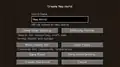 Create New World in 1.17.1.
 -
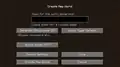 More World Options in 1.17.1.
 -
 Create New World in 1.12.2.
 -
 More World Options in 1.12.2.
 -
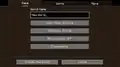 The "Game" tab in 1.19.4.
 -
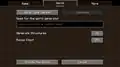 The "World" tab in 1.19.4.
 -
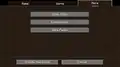 The "More" tab in 1.19.4.
 -
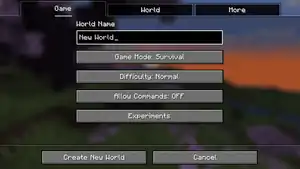 The "Game" tab in 1.20.5.
 -
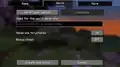 The "World" tab in 1.20.5.
 -
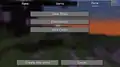 The "More" tab in 1.20.5.
 -
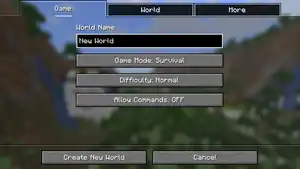 The "Game" tab in 1.21.6 to 1.21.8.
 -
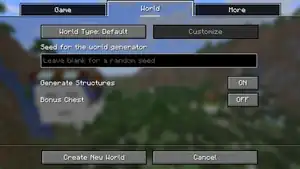 The "World" tab in 1.21.6 to 1.21.8.
 -
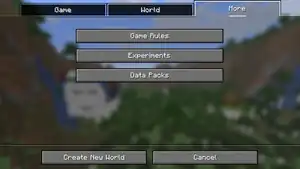 The "More" tab in 1.21.6 to 1.21.8.
 -
The "Game" tab in 1.21.9.
-
The "World" tab in 1.21.9.
-
The "More" tab in 1.21.9.
-
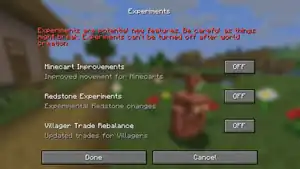 The "Experiments" screen.
Bedrock Edition
-
The "General" tab.
-
.png) The "Advanced" tab.
The "Advanced" tab. -
.png) The flat world presets menu in the "Advanced" tab
The flat world presets menu in the "Advanced" tab -
.png) The "Multiplayer" tab.
The "Multiplayer" tab. -
.png) The "Cheats" tab.
The "Cheats" tab. -
.png) The "Resource packs" tab.
The "Resource packs" tab. -
.png) The "Behavior packs" tab.
The "Behavior packs" tab. -
.png) The "Experiments" tab.
The "Experiments" tab.
Historical screenshots
-
 Create World screen from 1.2 development.
 -
 Create World screen from 1.3 development.
 -
-
.png) Another version.
Another version. -
-
.png)
See also
- Ore UI, the Bedrock Edition UI refresh
| |||||||||||||||||||||||
| |||||||||||||||||||||||