The jupyter-drive project is no longer supported due to the deprecation of the Google Realtime API.
You might instead consider jupyterlab/jupyterlab-google-drive; which adds a Google Drive file browser to the left sidebar of JupyterLab.
This repository contains custom Contents classes that allows IPython
to use Google Drive for file management. The code is organized as a
python package that contains functions to install a Jupyter Notebook
JavaScript extension, and activate/deactivate different IPython
profiles to be used with Google drive.
To install this package, run:
git clone git://github.com/jupyter/jupyter-drive.git
pip3 install -e jupyter-drive
This will install the package in editable mode with pip, which
means that any change you make to the repository will be reflected
into the importable version immediately.
To install the notebook extension and activate your configuration with
Google Drive, run:
python3 -m jupyterdrive
To deactivate, run:
python3 -m jupyterdrive --deactivate
First launch
Launch IPython with the profile in which you activated jupyter-drive:
ipython notebook --profile <profilename>
On first launch, the application will ask you for the authorization to
access your files on Google Drive. It only asks for permission to
create new files or to access files it has created or that you
manually open with this application. It also requires permission to
access file/directory metadata, in order to display the list of
files/directories in the tree view.
The request pop-up looks like the following:
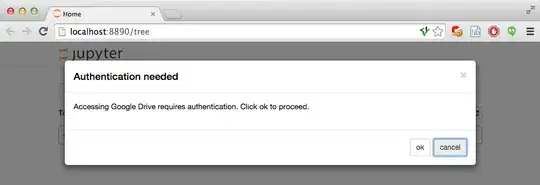
Clicking OK will open a Google OAuth pop-up. You will see that the
Jupyter Drive application wants access to some information about your
files. Keep that in mind if you want to revoke access at a later
point.
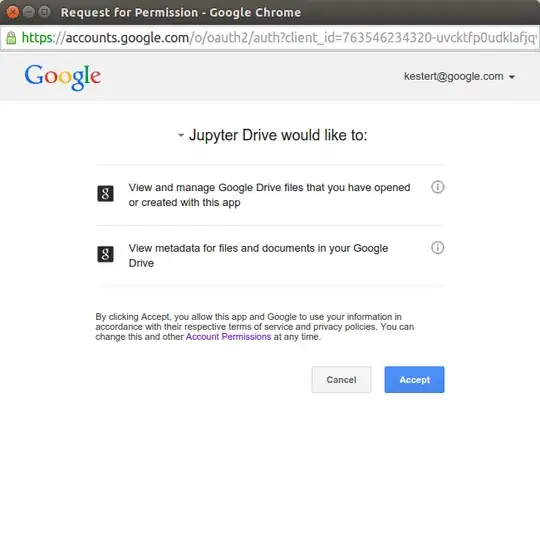
Once you click Accept you should be able to start creating new
notebooks on Google Drive, and open existing ones created by this
application, and view files/directories in the tree view.


