48

I have a 22'' display from HP (w2207h) connected to my laptop (a Dell Mini 10v or 1011) through a VGA switch (a share this screen with a desktop computer and a Nintendo Wii). My problem is that I can't set a higher resolution than 1024x768 (4:3) in my external display. I can only set a lower resolution (800x600 and 4:3). I used it before with Ubuntu and I had no problem with the screen resolution so I think the problem is the VGA switch. Does anybody knows how to fix this problem? Does anybody knows how I can start?

This is a screenshot of my screen configuration. The green one is the HP display and the word you can read on it is "unknown". Yes, it's in spanish. Thank you very much.
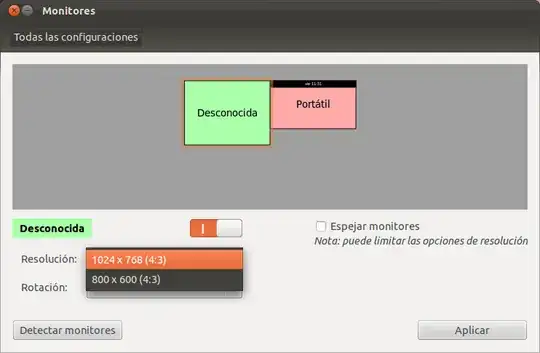
Screen configuration window Ubuntu 11.10

More information: The graphic adapter of my Dell Mini laptop is Intel945GSE UMA.

8 Answers8

70

The same occurs to me. You must add the resolution with:

xrandr --newmode <ModeLine>

To know the ModeLine of your resolution, do this:

$ cvt 1650 900

You will get some like this:

# 1656x900 59.93 Hz (CVT) hsync: 55.98 kHz; pclk: 122.25 MHz
Modeline "1656x900_60.00"  122.25  1656 1752 1920 2184  900 903 913 934 -hsync +vsync

Then, copy the information after the word “Modeline” into the XRandR command:

$ xrandr --newmode "1656x900_60.00"  122.25  1656 1752 1920 2184  900 903 913 934 -hsync +vsync

After the mode is entered, it needs to be added to the output:

xrandr --addmode VGA1 1656x900_60.00

Now you have the new resolution :-)

milkovsky
  • 175
  • 1
  • 14
FelGutiCo
  • 1,311
14

FelGutiCo and milkovsky are right, however I had to use the -r parameter to make it work (otherwise the left 20% of my monitor was blank and the image was fit into the right 80%), so what I did was:

$ cvt -r 1920 1080
# 1920x1080 59.93 Hz (CVT 2.07M9-R) hsync: 66.59 kHz; pclk: 138.50 MHz
Modeline "1920x1080R"  138.50  1920 1968 2000 2080  1080 1083 1088 1111 +hsync -vsync

$ xrandr --newmode "1920x1080R"  138.50  1920 1968 2000 2080  1080 1083 1088 1111 +hsync -vsync

$ xrandr --addmode VGA-1 1920x1080R

Plus one hint, as I had to change "VGA1" to "VGA-1"; to find out the IDs of my monitors I used:

$ xrandr --listactivemonitors
3
$ cvt 1366 768
# 1368x768 59.88 Hz (CVT) hsync: 47.79 kHz; pclk: 85.25 MHz
Modeline "1368x768_60.00"   85.25  1368 1440 1576 1784  768 771 781 798 -hsync +vsync

$ xrandr --newmode "1368x768_60.00"   85.25  1368 1440 1576 1784  768 771 781 798 -hsync +vsync

To find id of monitors

$ xrandr --listactivemonitors

Monitors: 2
 0: +*eDP-1 1366/345x768/194+0+0  eDP-1
 1: +DP-1 1024/271x768/203+1366+0  DP-1

$ xrandr --addmode DP-1 1368x768_60.00
Kulfy
  • 18,154
NBR
  • 31
  • 1
1

you can do what FelGutiCo said. Furthermore if you have trouble after a restart (ubuntu cannot find the resolution) you need to create an .xprofile file in your home directory with the two xrandr commands from above:

$ xrandr --newmode "1656x900_60.00"  122.25  1656 1752 1920 2184  900 903 913 934 -hsync +vsync
$ xrandr --addmode VGA1 1656x900_60.00

where 1656x900.. --> your desired resolution

0

This answer builds on the previous answers but differs from each in a certain way:

To introduce 2560x1440 QuadHD resolution and keep it after every restart on Ubuntu 20.04, I had to put the following in my ~/.profile file (as suggested here)

xrandr --newmode "2560x1440R"  241.50  2560 2608 2640 2720  1440 1443 1448 1481 +hsync -vsync
# the following device names are obtained with "xrandr --listmonitors"
xrandr --addmode eDP-1 2560x1440R # optional for me
xrandr --addmode DP-1 2560x1440R  # optional for me
xrandr --addmode HDMI-1 2560x1440R
xrandr --addmode HDMI-2 2560x1440R

Note that the argument in the first line is obtained with

$ cvt -r 2560 1440
# 2560x1440 59.95 Hz (CVT 3.69M9-R) hsync: 88.79 kHz; pclk: 241.50 MHz
Modeline "2560x1440R"  241.50  2560 2608 2640 2720  1440 1443 1448 1481 +hsync -vsync

as mentioned by @zsolt-katona in this answer. I tried without -r but it didn't work as expected.

0

In addition to the answer of FelGutiCo, I would suggest the last step for anyone who has been getting :

xrandr: cannot find output "VGA1"

Because you are targeting a different output device, you get that error. To resolve this:

  1. query all available output devices, and check which one is connected other than your primary screen. Using the query option :

xrandr -q

  1. copy the connected device name, and place it instead of VGA1

xrandr --addmode VGA1 1656x900_60.00

Ayoub_Prog
  • 101
  • 1
0

The following command work for me on my Ubuntu 17.04 ,Lenovo Ideapad Z510 with Nvidia 1GB GPU

ubuntu@home-ideapad: xrandr --listmonitors

kuldipem
  • 151
0

If you think the problem may be the VGA switch, why don't you try plugging the monitor in directly?

Also, there's a known problem with the video chipset on many netbooks, where the combined screensize cannot exceed 2048 pixels in any dimension. So if your laptop's is 1024 pixels wide, you can only add another display of up to 1024 pixels wide.

To check for this, open a terminal and use this command:

lspci

if you see "Intel Corporation: N10 Family Integrated Graphics Controller" then your system is affected by this problem.

This is caused by some driver limitations in Ubuntu, here's the bug report for this:

https://bugs.launchpad.net/ubuntu/+source/compiz/+bug/830949

This is why, if you try to set a higher resolution, you'll get a message saying that you need to fit all monitors within 2048x2048 pixels. Unfortunately there's no real solution to this but I can suggest two workarounds:

  1. Arrange the monitors one on top of the other. Thus it's the vertical resolution that's limited, and 600+900=1500 which is lower than 2048, thus you'll be able to use both monitors.
  2. Use Unity-2d, I think the limitation does not affect it.

Note that if you try to set the resolutions via the commandline, you'll bypass the "protection" against setting an invalid resolution. This will not work and your system will become unusably slow. If this happens, just reboot it.

roadmr
  • 34,802