35

I tried to set up auto-login but I still have to login each time when I start up the computer. How can this be changed?

  • What if changing the Xubuntu settings (XFCE/System/Users and Groups) doesn't work?
  • What are the steps for LightDM-based distros (Xubuntu, Ubuntu Server with XFCE (e.g. Raspberry PI 3), Ubuntu Unity, Ubuntu Mate, Ubuntu Budgie)?
  • What are the steps for gdm3-based distros (Ubuntu (GNOME), and Edubuntu)?
Daniel T
  • 5,339
Filbuntu
  • 13,891

9 Answers9

43

Type in a terminal (e.g. Xubuntu, Ubuntu Server with XCFE (e.g. Raspberry PI 3):
sudo -e /etc/lightdm/lightdm.conf

(Better than sudo nano /etc/lightdm/lightdm.conf or sudo mousepad /etc/lightdm/lightdm.conf, see below the reasoning* - Thank you red_trumpet for the hint)

Add these lines to the file:

[Seat:*]
autologin-session=xubuntu
autologin-user=YourDesiredAutoLoginUserName
autologin-user-timeout=0

You could use e.g. file /etc/lightdm/lightdm.conf.d/autologin-xubuntu.conf, instead, but then you should make sure settings in another file in that directory or in file /etc/lightdm/lightdm.conf do not override it.

For GDM-Users

The config file is located /etc/gdm3/custom.conf (according to the other answer, please vote Arbuntu's answer up if you found it helpful):

sudo -e /etc/gdm3/custom.conf

Uncomment the following lines (delete the #) and fill in your user name:

# Enabling automatic login
  AutomaticLoginEnable = true
  AutomaticLogin = YourDesiredAutoLoginUserName

Extra:

To remove password on resume, right-click the system tray power icon then Preferences. This brings up the XFCE power manager (Alternatively you can navigate to XFCE/Settings/Settings Manager/Power Manager). Click Extended in the left pane. Uncheck Lock screen when going for suspend/hibernate.

The last place is XFCE/System/Users and Groups. If it's set "Password: Asked on login" you can change it, and thereafter, if you logout or switch user, you can get back without entering password.

*Reason for using sudo -e instead of the editor directly:
sudo -e copies the file with user privileges, and opens it with your preferred editor. After saving, the file gets copied back to the original file. In this way, the editor does not obtain root privileges, which is a security improvement. (And if configured correctly, your preferred editor is chosen automatically, which is quite convenient).

Sources: lightdm/Read.me, Ubuntu Forum, SuperUser

Filbuntu
  • 13,891
23

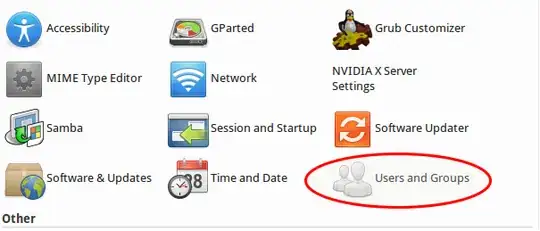
Click on Settings --> Users and Groups

enter image description here

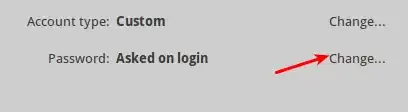
Next to Password, click on Change

enter image description here

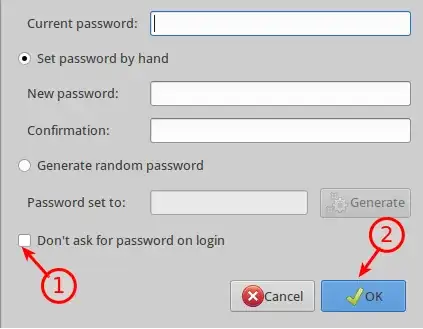
Click on Don't ask for password on login

enter image description here

Mitch
  • 109,787
16

Things appear to have changed a bit since the accepted answer was written. Under Xubuntu 16.04 the settings have moved to

/etc/lightdm/lightdm.conf

and they look like this

[Seat:*]
autologin-guest=false
autologin-user=gord
autologin-user-timeout=0
3

In Ubuntu 20.04 with Xubuntu Minimal Desktop

Open a terminal and paste this, it is the same route that you have put @phil294 in an answer above

sudo nano /usr/share/lightdm/lightdm.conf.d/60-xubuntu.conf

We will find these lines

[Seat:*]
user-session=xubuntu

You just have to paste this autologin with your username (in lowercase)

autologin-user=username

It will look like this

[Seat:*]
user-session=xubuntu
autologin-user=username

To save in the nano editor

Ctrl + o ==> Enter

To exit the editor

Ctrl + x

The next time you log in, the LightDM window will no longer appear

Vicente
  • 39
  • 1
2

After following @Filbuntu's answer, I had to do two more things to make this work.

First, I thought the autologin-session parameter was just an alias name so I just put xubuntu, but turns out it should be a valid xsession name. You can see the ones available as files inside /usr/share/xsessions. The session name should be the filename without the .desktop part. In my case I had the following files inside /usr/share/xsessions:

~$ ls -1 /usr/share/xsessions/
ubuntu.desktop
xfce.desktop

My lightdm.conf file ended up like this:

[Seat:*]
autologin-session=xfce
autologin-user=foobar
autologin-user-timeout=0

The second thing, I am not sure if it is required or not, but I looked in LightDM's logs (journalctl -u lightdm) and saw the following line:

pam_succeed_if(lightdm:auth): requirement "user ingroup nopasswdlogin" not met by user "foo"

So to fix it I added my user to this group:

usermod -aG nopasswdlogin foo

Now autologin works as expected.

Gus
  • 333
0

I'm using xubuntu with GDM so the config file is located below

/etc/gdm3/custom.conf

Find out below lines then uncomment them and fill out your user name

# Enabling automatic login
  AutomaticLoginEnable = true
  AutomaticLogin = YourDesiredAutoLoginUserName
0

Mine is a GUI answer to the Auto Login question.

The sequence is Settings/Details/Users.

To get into Settings, click in the top right corner of your screen. A small box will open with three icons across the bottom.

Settings is on the left, it resembles a mosquito but is actually a crossed wrench and screwdriver.

When Settings opens you might be anywhere in the system. Look at the top. If it doesn't say Settings, click on the Left Arrow (<) in the top left of the screen. That will take you to Settings. Details is at the bottom of the left hand column. Users is the third option down. To make any changes you need to Unlock the screen by clicking on the Unlock button in the top right corner, enter your password to enable changes. You can add Users, change the password, and turn Auto Login ON or Off.

Kevin Bowen
  • 20,055
  • 57
  • 82
  • 84
0

auto login is described here:

opinion_no9
  • 1,072
0

Not an answer to the question but related for folks in this thread: if you want to turn this OFF: make a backup of lightdm.conf, then change lightdm.conf to:

[SeatDefaults]
autologin-guest=false
autologin-user=
autologin-user-timeout=0
autologin-session=

Why this can't be in the GUI, I don't know.

dez93_2000
  • 1,241