Another way to add page number one for the first page after the Roman numerals, is to add the paragraph style from a level 1 heading. This achieves everything from a single menu and doesn’t involve inserting manual page breaks. I would argue that it is a superior way of doing it, as it ties the page numbering to a style, which makes it more controllable.
There are two approaches (I will assume the page will start with a Heading 1 heading):
- Create a separate heading style which inherits Heading 1’s styles.
- Manually edit the first heading of the page starting with page number 1
Method 1: Creating a separate first page Heading 1
From the style menu (press F11 to open it if it is closed), right-click Heading 1 to get the option to create a new style.
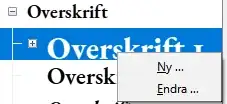
Figure 1: Right-clicking Heading 1 to create a new style based on and inheriting Heading 1
Click New … to open the dialogue window.
Name, inheritance and next style
Let’s give it a meaningful name, such as ‘Heading 1, first page’. You will not have to make any edits to this style except how to do page breaks, as it will inherit all of its styles from Heading 1. This is what to do:

Figure 2: Showing the first tab, where the style is named and inheritance is select.
Under the first tab, name the style (here done in English, to match the instructions here given); I chose the name from above: ‘Heading 1, first page’. Notice that Next style (‘Neste stil’) by default is the style you currently are editing. Click the drop-down menu and select Body text; this means that when you press ↵ after writing the heading, your next style will automatically be Body text. Under Inherited from (‘Arva frå’) it states that it is getting all its styles from Heading 1 (‘Overskrift 1’); this is what we want.
Text flow: inserting the page break and setting the page number
You can now go to the Text flow (‘Tekstflyt’) tab; it looks like this:
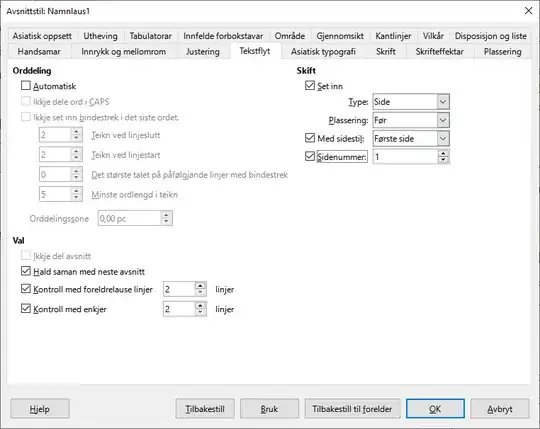 Figure 3a: Text flow tab
In this tab you want to select a few options from the right-hand side and can optionally select some extra ones:
- The first box must be selected:
Insert.
Type is Page.Placement is Before.- Optionally select
With page style. You can choose a different page style if you would like this; I like to use the First page page style, as that allows me to give that page a somewhat different appearance, such as not having top text assigned to it (the other pages usually have chapter headings as top text).
Page number is 1.
Confirming the disposition level
Finally go to Disposition and list to check that its heading level is correct:
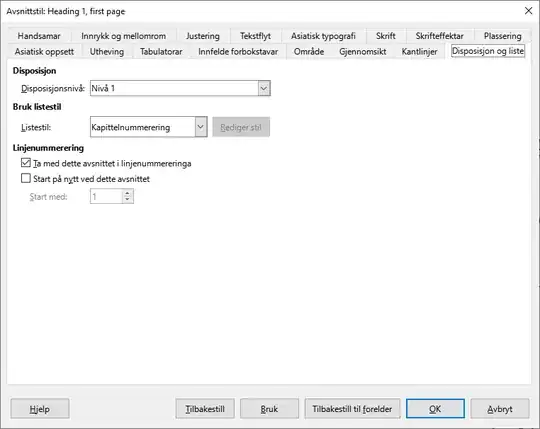
Figure 3b: Disposition and list, where text level is set.
In this tab, you can select which heading level you want to be assigned to it. If Disposition level (‘Disposisjonsnivå’) is set to Body text, it won’t be recognised as a heading. Change it to Heading 1 (‘Overskrift 1’) if need be.
Click OK to confirm your edits.
Assigning the heading
Now create your heading and assign the new paragraph style to it.
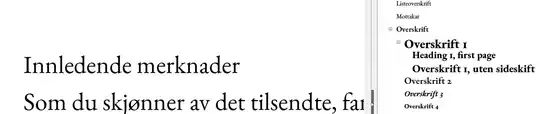 Figure 4: Cursor placed at the line saying ‘Innledende merknader’ to be made heading.
- Place your cursor at the paragraph (line) which is to be your first page.
- Double click your new heading style:
Heading 1, first page.
Et voilà! Your heading now has a level 1 heading style, inserts a page break and resets the page count to page 1.
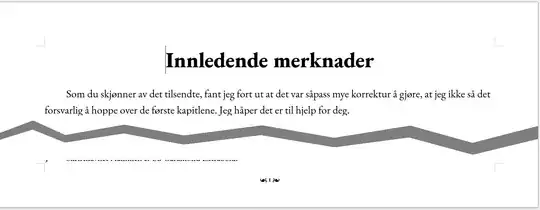
Figure 5: Page style set up correctly, making it a heading setting the page number to 1. The florals that decorate the first page page number, are found at U+2766, U+2619 and U+2767. An excellent resource for any Unicode character is &what;.
Method 2: Editing the paragraph style of the heading directly
Generally this is not recommended; it is (almost) always better to use a style rather than a manual edit, but in case you want to do it quickly, here it is:
Assigning a header style
To quickly assign the style Header 1 to it, simply put the cursor where the heading text is and press Ctrl + 1. Alternatively, press F11 to open the style menu and select Heading 1 from the paragraph style options.
Opening the paragraph menu
Next, right-click the heading and select Paragraph → Paragraph … from the menu.
- Select the tab
Text flow
- Follow the steps from above:
- Select
Insert
- Set
Type to Page
- Set
Placement to Before
- Optionally set
With page style to the page style you wish to use for the first page.
- Set
Page number to 1.
- Click OK to confirm.
Your style should now have been applied as above. Be advised that if you should remove manual edits (Ctrl + M), the page numbering will be lost and will have to be set again.
Final notes: Changing numbering styles
The page number you have chosen, must have a numbering style associated with it. It can be anything you wish from a large list of options. To get access to them:
- Right click the page number.
- Select
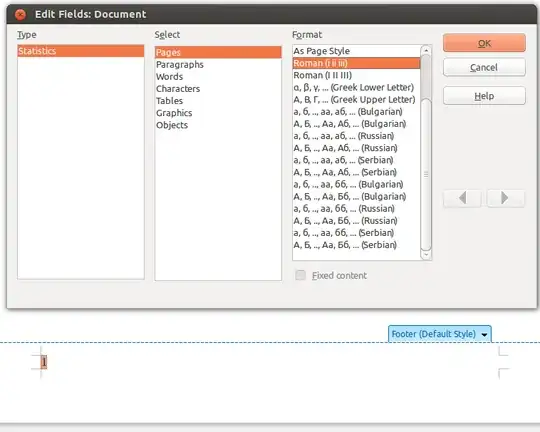
Edit fields … From the new menu, you get a list of options:
- Under format, select the desired numbering scheme.
- Click OK to confirm.
This is what it looks like:
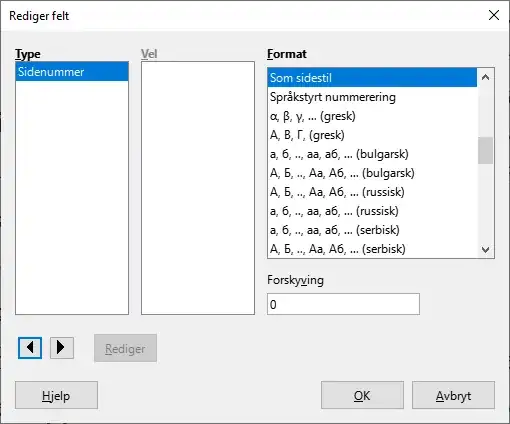
Figure 6: Numbering style window.