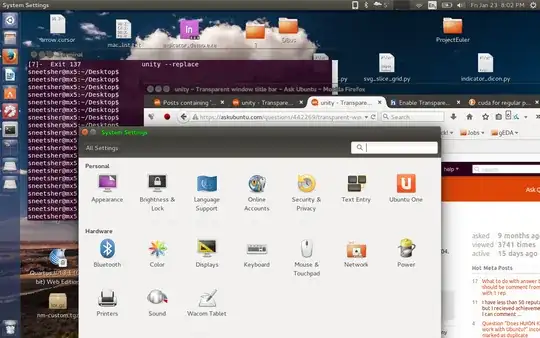
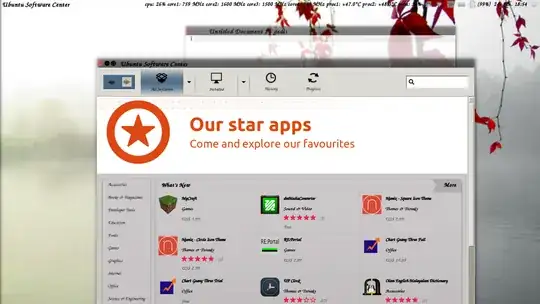
WARNING: This has undesirable side-effects, so back up the files you modify in case you can't live with the side-effects.
Do what @Sneetsher did.
Then also comment out all background-image sections in /usr/share/themes/Ambiance/gtk-3.0/apps/gnome-panel.css
Now open /usr/share/themes/Ambiance/gtk-3.0/gtk-widgets.css. Your lines 1926 to 1960 (hopefully) read as follows:
/* primary-toolbar */
.primary-toolbar,
.primary-toolbar .toolbar,
.primary-toolbar.toolbar,
.menubar.toolbar,
.header-bar {
    -GtkWidget-window-dragging: true;

    background-image: -gtk-gradient (linear, left top, left bottom,
                                     from (shade (@dark_bg_color, 0.96)),
                                     to (shade (@dark_bg_color, 1.4)));
    border-bottom-color: shade (@dark_bg_color, 1.1);
    border-top-color: shade (@dark_bg_color, 1.09);
    border-style: solid;
    border-width: 1px 0 1px 0;

    color: @dark_fg_color;
    text-shadow: 0 -1px shade (@dark_bg_color, 0.7);

    box-shadow: inset 0 1px shade (@dark_bg_color, 0.94);
}

.primary-toolbar .toolbar:backdrop,
.primary-toolbar.toolbar:backdrop,
.menubar.toolbar .toolbar:backdrop,
.menubar.toolbar.toolbar:backdrop,
.header-bar:backdrop {
    background-image: none;
    background-color: @dark_bg_color;
    box-shadow: none;
    border-top-color: @dark_bg_color;
    border-bottom-color: shade (@dark_bg_color, 0.9);

    color: @backdrop_dark_fg_color;
}
Change them to this:
/* primary-toolbar */
.primary-toolbar,
.primary-toolbar .toolbar,
.primary-toolbar.toolbar,
.menubar.toolbar,
.header-bar {
    -GtkWidget-window-dragging: true;

    /*background-image: -gtk-gradient (linear, left top, left bottom,
                                     from (shade (@dark_bg_color, 0.96)),
                                     to (shade (@dark_bg_color, 1.4)));
    border-bottom-color: shade (@dark_bg_color, 1.1);
    border-top-color: shade (@dark_bg_color, 1.09);
    border-style: solid;
    border-width: 1px 0 1px 0;*/

    /*color: @dark_fg_color;*/
    text-shadow: 0 -1px shade (@dark_bg_color, 0.7);

    /*box-shadow: inset 0 1px shade (@dark_bg_color, 0.94);*/
}

.primary-toolbar .toolbar:backdrop,
.primary-toolbar.toolbar:backdrop,
.menubar.toolbar .toolbar:backdrop,
.menubar.toolbar.toolbar:backdrop,
.header-bar:backdrop {
    background-image: none;
    /*background-color: @dark_bg_color;*/
    box-shadow: none;
    /*border-top-color: @dark_bg_color;
    border-bottom-color: shade (@dark_bg_color, 0.9);*/

    color: @backdrop_dark_fg_color;
}
Now when you restart unity, active windows will also have a transparent toolbar.