32

I just updated to 11.04, now if I drag a window to the side of the workspace, the window is maximized to half of the screen. is there a way to move it to another workspace with the mouse?

I know you can right-click on the title and choose "move to Another Workspace", but I would like something quicker.

fossfreedom
  • 174,526

4 Answers4

47

You have a few options:

Use keyboard shortcuts

Use Ctrl+Alt+Shift+Left/Right/Up/Down to move the current window as you change workspaces.

Use the Workspace Switcher

Open the Workspace Switcher (Click the "Workspace Switcher" icon in the launcher or press Super+S) and then drag-and-drop windows between workspaces.

Disable edge resize actions

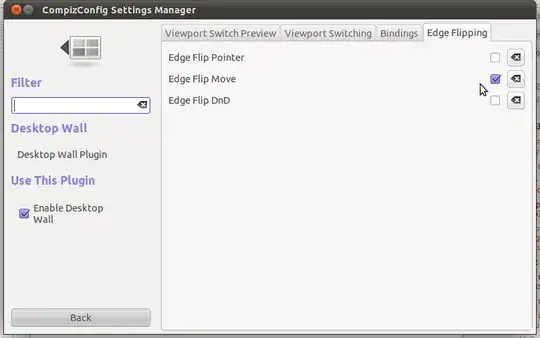
Install the CompizConfig Settings Manager, set the options in Grid ▸ Edges ▸ Resize Actions to None, and check Desktop Wall ▸ Edge Flipping ▸ Edge Flip Move.

ændrük
  • 78,496
24

Simple way: Use workspace switcher and drag the window to your desired workspace.


Ideal way: install compizconfig-settings-manager (click HERE to install) and enable edge flipping.

After installing, invoke compizconfig-settings-manager with ccsm or by searching in Dash. Select Desktop Wall and in the Edge Flipping tab check "Edge Flip Move." The edge flipping tab of the Desktop Wall plugin lets you set three different types of edge flipping

Now you can drag windows between workspaces. (Note your pointer needs to press against the side of the workspace around the middle.) It takes a second before the viewport changes.


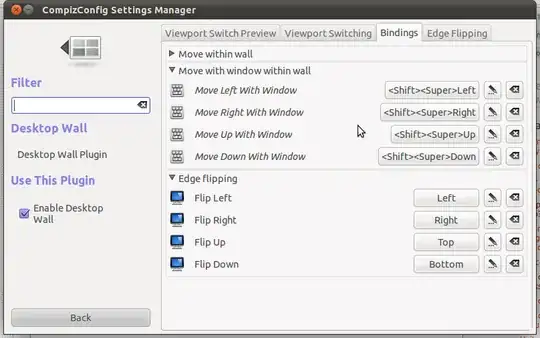
Compizconfig-settings-manager can also set keyboard shortcuts to move windows between workspaces: You can see my keyboard shortcuts for moving windows between workspaces -- note that I've remapped the dash to Super+space

Byte Commander
  • 110,243
idbrii
  • 3,162
2

The older way of dragging a window outside the screen was sending it partly to another workspace because the "window snapping" feature was absent (the one that you experienced: "if I drag a window to the side of the workspace, the window is maximized to half of the screen"). Now, it is enabled by default. Do disable it, install Unity Tweaks Tool: Window snapping: OFF.

enter image description here

But there is another more elegant way which keeps the window snapping enabled by using Unity Tweaks Tool.

This may vary, but imagine that we have two horizontal workspaces and the lower hotcorners set for showing workspaces and spreading windows:

enter image description here

So, we can just go with the pointer to lower right corner to expose all windows and select the one we want to move
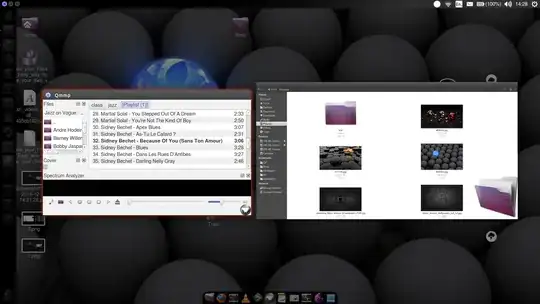
enter image description here

And when that is selected, we put the mouse to the lower left corner to see all workspaces and drag the window where we want:
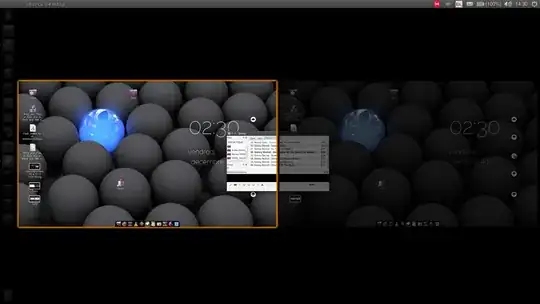
enter image description here

0

You can do this with gnome-panel.
First type gnome-panel on terminal. Then you will see the list of open programs on bottom left panel(just like taskbar of window). And on bottom right there will be four workspace. Just you need to drag the bottom left program to the workspace of your choice. Unlike unity-2d-shell, the program will only be visible if you go to the workspace containing that program.

vusan
  • 477