Is it possible to show the seconds on the clock in GNOME 3?
Asked
Active
Viewed 9.2k times

6 Answers
203
Not sure when this path changed, but as of Ubuntu 13.04 the seconds display can be set in the terminal with:
gsettings set org.gnome.desktop.interface clock-show-seconds true
To turn seconds display off:
gsettings set org.gnome.desktop.interface clock-show-seconds false
and checked with:
gsettings get org.gnome.desktop.interface clock-show-seconds

user215860
- 2,031
- 2
- 13
- 2
56
GUI way:
- launch gnome-tweak-tool, sometimes called Advanced Settings
- click the Top Bar menu
- enable Show seconds

Michel Samia
- 891
52
The GUI way to do this, (on 22.04 LTS) seems to be:
sudo apt install gnome-tweaks
Before 20.04 LTS the package name was different:
sudo apt install gnome-tweak-tool
and then launch "Tweaks" either by searching for it in Applications menu or launching gnome-tweaks from terminal.
From there you'll see something like this:


Arpad Horvath
- 183

Riki137
- 3,651
17
Yes, run this command in a Terminal:
gsettings set org.gnome.shell.clock show-seconds true
And you can verify with:
gsettings get org.gnome.shell.clock show-seconds
Or you can install dconf-tools  and use
 dconf-editor to browse to org.gnome.shell.clock


Jeremy Bicha
- 8,294
3
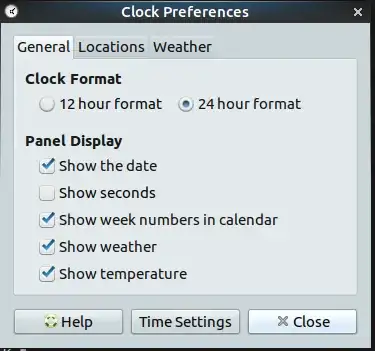
For MATE Desktop (the continuation and fork of GNOME 2 with GTK+ 3 support), you can achieve this using the graphical user interface (GUI)!
- Right-click on date and time:
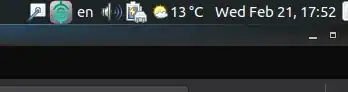
- Go to
Preferences - Now enable the
Show seconds


The end result:

Drink beer and Vote me up, cause it rocks!

1
Ubuntu 24.01+ has changed the way to personalize the clock.
"Top Bar" is no longer present in gnome-tweaks tool, all of their settings are now present direct below built-in Settings > Date & Time menu.


André M. Faria
- 7,474