This is a cleaner solution.
inotifywait does not waste CPU resources to check for changes when the file hasn't been edited. Instead, it only returns a value when the file has been changed. This means we can use it in a while loop:
# find your background file, which may be png or jpg.
BGfile = find ~/.local/share/backgrounds/ -iname '*.png' -or -iname '*.jpg'
while inotifywait -e attrib /path/to/original/background/image.jpg
do
  cp /path/to/original/background/image.jpg ${BGfile} # direct overwriting hack mentioned by @vanadium
done
This script starts an instance of inotifywatch to watch out for changes to the metadata (attrib) of the original background image file. When the metadata finally changes, inotifywatch terminates, and returns a true value. This trigger the copying action inside the loop, and then a new instance of inotifywatch is started at the beginning of the while loop again.
Things to watch out for:
- Different options than
attrib might be required on your computer, depending on the operating system. Play around, set up some experiments, to find out which one does your operating system and Ubuntu version works best with. (My old Ubuntu 18.04 worked well with close_write, but my new Ubuntu 22.04 works best with attrib)
- If you wish to run this in the background without a terminal, you don't need to use crontab. You can simply wrap it in
nohup and put it into a script like so:
if [[ -z $(pgrep inotifywait) ]]; then # ignore this line if an "inotifywait" process is already running; ensures idempotency.
  nohup bash -c 'while inotifywait -e attrib /path/to/original/background/image.jpg; do cp /path/to/original/background/image.jpg ~/.local/share/backgrounds/<target_image.jpg>; done' &>/tmp/nohup-inotifywait.out &
fi
You can then run this script from the terminal, which would then detach itself and print any outputs and errors into /tmp/nohub-inotifywait.out. Then this while loop will still exist in the background even after you've closed the terminal.
- If you want this script to run upon start up, you can use the "Startup Application Preferences" app:
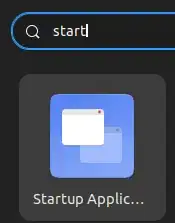
For example, I have named my script inotifyActions.sh and saved it at ~/.
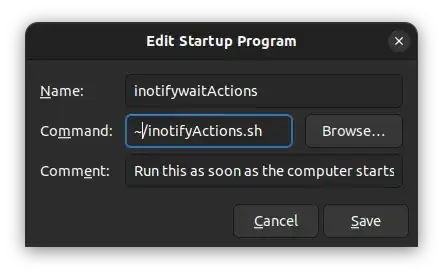
Then this way, you don't even need to start your terminal and run "~/inotifyActions.sh" every time you start your computer - it runs in the background automatically as soon as you start it.
(Hope this helps someone down the line!)


